How to Collaborate in Real Time With Google Slides
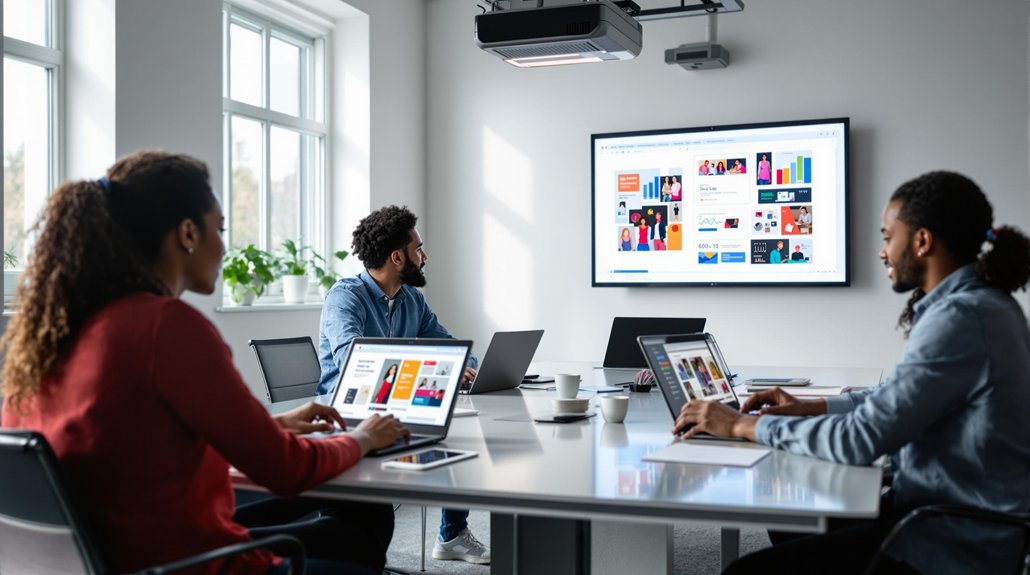
Google Slides has become a cornerstone of real-time collaboration, allowing teams to work together on presentations efficiently and effectively. Its intuitive design, coupled with powerful features, makes it possible for colleagues, clients, and classmates to contribute simultaneously, no matter where they are.
Setting Up Real-Time Collaboration
When you're ready to set up real-time collaboration in Google Slides, start by clicking the "Share" button and entering your collaborators' email addresses. Verify they have Google accounts to access the shared presentation. Once shared, everyone involved can edit simultaneously. Each collaborator's actions are marked by a color-coded cursor, making it easy to track who's making changes.
This feature creates a dynamic and collaborative environment where feedback and suggestions flow effortlessly. Changes made are visible to all instantly, so you won't need to worry about losing track of different versions. This seamless integration of tools keeps your team on the same page, enhancing productivity and creativity without the hassle of multiple emails or document versions.
Utilizing the Chat Feature for Communication
The chat feature in Google Slides is a crucial tool for seamless communication during collaborative projects. It allows you to initiate group conversations by clicking the Chat button in the top-right corner while collaborating in real time.
You'll see profile pictures of collaborators who are currently viewing the file, making it easy to identify who's active. Keep in mind, accessing this chat feature requires a Google account, as anonymous users can't participate.
When you receive incoming chat messages, they trigger a default dinging sound. If you find this distracting, you can mute it by adjusting settings in the chat box's gear icon menu. Remember, these chats are limited to a single group conversation within Google Slides, unlike Gmail or Google+.
Providing Feedback Through Comments

While working on collaborative presentations, providing feedback through comments in Google Slides is essential for clear communication. You can add comments to specific slides or elements, allowing for targeted suggestions and input. This feature helps you collaborate in real-time, guaranteeing everyone sees the feedback and can make necessary changes simultaneously.
Comments create a chronological thread, making it easy to track discussions and responses about required adjustments. You can reply to existing comments, fostering a collaborative environment where all input is valued before finalizing the presentation.
Once you've addressed a comment, resolving it helps maintain an organized presentation by filtering out completed feedback. This approach assures that your team's efforts remain coordinated and effective throughout the project.
Managing Access and Sharing Permissions
Effectively managing access and sharing permissions in Google Slides guarantees your presentation stays secure and organized. Start by clicking the "Share" button, where you can enter the email addresses of collaborators and select their permission level—view, comment, or edit.
This control over the editing process assures your collaborators have the appropriate access. You can also generate a shareable link, adjusting visibility settings for restricted or public access based on your needs. These customizable settings allow you to modify or revoke access at any time, tailoring collaboration to fit your project's requirements. R
Additionally, using a CMS can help maintain brand consistency by ensuring uniformity in presentation styles and templates, which enhances trust and improves the user experience.
Leveraging Integration With Google Workspace
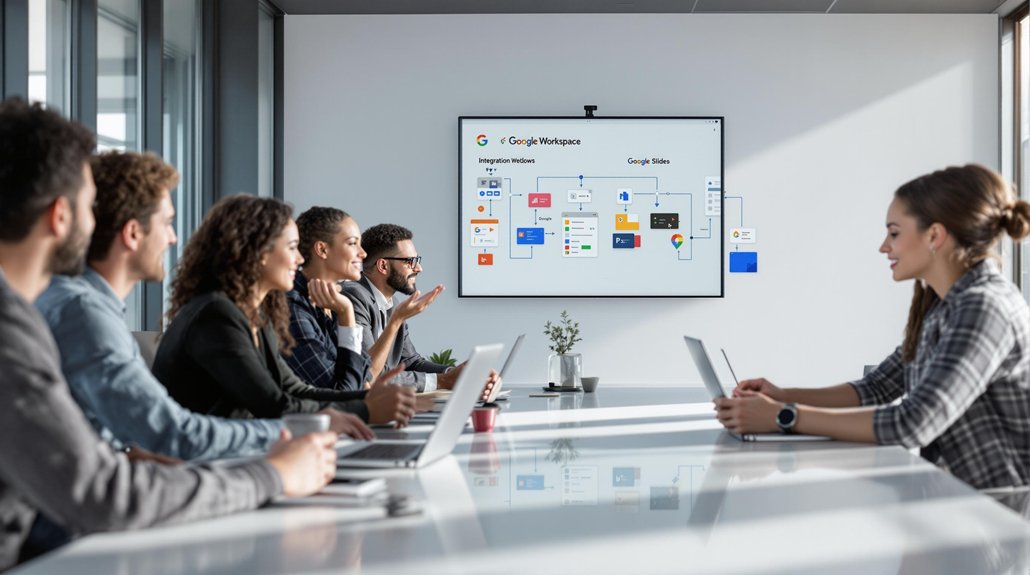
Beyond managing access and sharing permissions, Google Slides shines when integrated with Google Workspace. This seamless integration with Google Drive allows you to store and share professional presentations effortlessly. Real-time editing enables collaboration, allowing multiple users to work simultaneously without the chaos of multiple versions.
When you integrate Google Sheets, you can insert live charts and graphs, guaranteeing your data is always current. Plus, adding content from Google Docs enriches your presentations, making them cohesive and thorough. Automatic saving in Google Slides guarantees you never lose your work, while the version history feature lets you track changes and revert if necessary.
User management capabilities in Google Slides ensure secure collaboration by controlling access levels and organizing content efficiently. This robust integration with Google Workspace transforms the way you collaborate, making it efficient and effective, keeping everyone aligned and updated.
Enhancing Presentations With Aippt
Transform your presentation workflow with AiPPT, a tool designed to streamline and improve your slide creation process. By automating slide design, AiPPT analyzes your content and provides a structured design tailored to your topic. You can choose from a variety of customizable templates that fit your presentation's style and branding needs.
In a collaborative environment, AiPPT supports real-time collaboration, allowing multiple users to work on a presentation simultaneously, ensuring efficiency and creativity without delays. Its seamless integration with Google Slides improves workflow, enabling easy import of generated slides into your existing presentations.
This automation saves you significant time, letting you focus on refining your content and delivering impactful presentations. Personalized content can significantly increase user engagement and conversion rates, making your presentations more effective. Adopt AiPPT to uplift your slide design and collaboration experience.
Use Comments for Structured Feedback
Comments in Google Slides are perfect for providing feedback without directly altering the content. Select any text, image, or element on a slide and click the Add comment button or right-click and choose "Comment." You can tag specific team members using @mentions, such as "@John please revise this heading for clarity," ensuring tasks are assigned efficiently.
Comments allow for asynchronous collaboration. For example, if your colleague is in a different time zone, they can review your suggestions later and address them at their convenience. This functionality keeps discussions organized, ensures clear communication, and avoids missteps in the revision process.
Conclusion
Google Slides offers a wealth of features designed to make real-time collaboration seamless and efficient. From sharing files and live editing to comments and security settings, it empowers teams to work together effortlessly. By leveraging these tools, you can ensure your presentations are polished, dynamic, and reflect the best input from everyone involved.
Related posts