A Beginner’S Guide to Wordpress: Getting Started With Your Website
Starting a WordPress website might seem intimidating, but with this guide, you'll find it straightforward. We'll guide you through setting up your account, choosing a domain, and selecting a theme that aligns with your vision. Once your site is configured, you'll learn how to create engaging content to attract visitors and customize your site's appearance to make it unique. Additionally, we'll cover crucial steps like implementing security measures and managing privacy settings. Ready to establish a professional online presence? Let's get started.
Setting Up Your Account
Setting up your WordPress.com account is straightforward and user-friendly. To get started, simply click "Get Started" and choose your login preference—either via email or by setting a personal password. During the onboarding process, you'll be guided through creating your new site, with the option to add multiple free sites if you wish.
Selecting a hosting plan is essential because it determines the features and functionality available to your site. WordPress offers a range of paid plans, each providing site-specific services to enhance your experience. If you ever feel the need for more advanced features, you can upgrade your plan at any time. Any unused time from your previous plan will be credited towards your new plan, ensuring you don't lose any value.
If you encounter any difficulties or have questions, the support team is readily available to assist you. They can help with account setup and guide you through any related inquiries, ensuring a smooth creation process and full utilization of all available features and functionalities. With WordPress, you have all the tools and support you need for a successful start.
Choosing a Domain and Theme
Selecting the right domain and theme is a vital step in creating your WordPress site. When choosing a domain name, you have multiple options. WordPress.com offers a free domain name with a .wordpress.com URL, which is ideal if you're just starting out and want to keep costs low. However, for a more professional appearance, a custom domain name is recommended. Custom domains require a paid hosting plan, but the first year is usually included. If you already own a domain, you can connect it to your WordPress site without additional cost.
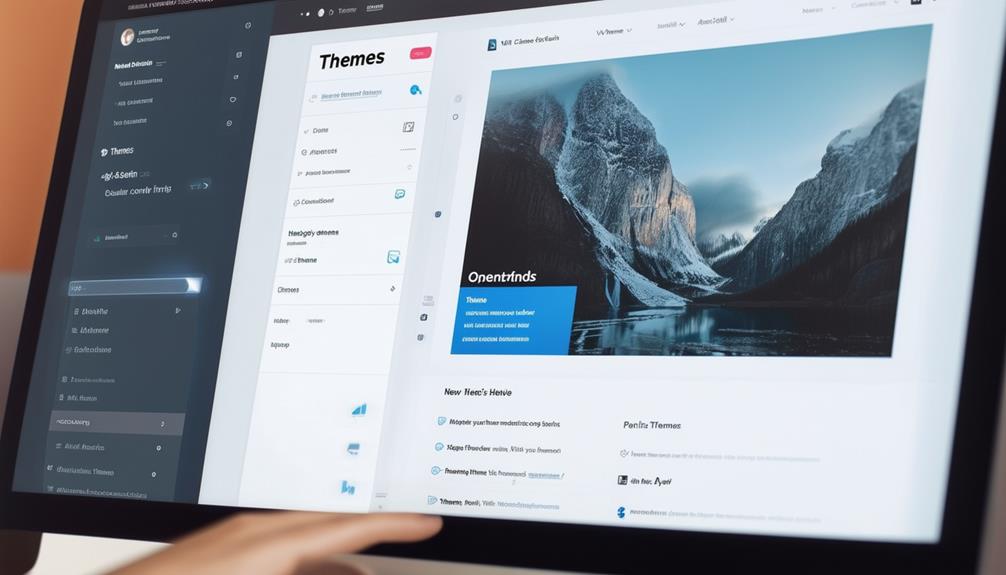
After installing WordPress, the next significant step is selecting a theme. You can choose a theme during the site creation process or later via Appearance > Themes in your dashboard. Whether you opt for free or paid themes, the theme you select will greatly impact your website's design and user experience. Themes offer various customization options, allowing you to tailor your site to your specific needs. Whether your site is a blog or a standard website, picking the right theme is crucial for creating a visually appealing and functional site. Remember, you can always change and customize your theme later to better fit your vision.
Configuring Your Site

Now that you've chosen your domain and theme, it's time to configure your site. Begin by setting your site title, tagline, and other essential details under Settings > General. Next, manage your navigation menus through Appearance > Menus to ensure visitors can easily find what they need.
General Settings Configuration
Navigating to the Settings > General section in your WordPress dashboard allows you to configure crucial aspects of your site, such as the site title, tagline, and associated email address. These elements are key to your website's identity, so choose them carefully. Setting the correct time zone is also important as it ensures your posts and updates reflect your local time, enhancing relevance for your audience.
Next, focus on the Site Address (URL) and WordPress Address (URL). Both should be consistent, especially if you're migrating or changing your domain, to avoid accessibility issues. If you run a membership or community site, consider enabling the "anyone can register" option by checking the corresponding box.
Don't overlook the Privacy Settings, where you can manage your site's visibility. Whether you want your site to be public or restrict it from search engines, configuring these settings correctly is essential. This guarantees your content reaches the intended audience while maintaining the necessary level of privacy.
Navigation Menu Setup
Setting up your navigation menu is a crucial step in configuring your WordPress site, as it often serves as the primary means for visitors to explore your content. To create your navigation menu, go to Appearance > Editor in the WordPress dashboard. Here, you will use the Navigation block to add and manage your site's menu items. Ensure that the pages you wish to include are published, as only published pages can be added to the navigation.
After adding your desired pages, you can rearrange the menu items using the drag-and-drop feature within the Navigation block setup. This allows you to customize the order of the items, ensuring a logical flow for your visitors.
Remember to set a primary menu location in your theme settings. This step is essential as it makes the navigation accessible to visitors, typically placing it in a prominent position on your site. If you encounter any issues or need further guidance, detailed support guides are available to help you create a user-friendly navigation experience. By carefully setting up your navigation menu, you ensure that visitors can easily find and explore your content.
Creating Content
Creating compelling content is the cornerstone of any successful WordPress site. Start by navigating to the Posts section from your main dashboard. To create new content, click on "Add New Post" to begin writing your blog entries or articles. Use the Drafts, Scheduled, and Trashed tabs within the Posts section to manage your content efficiently, ensuring timely publication.
For visually appealing and professional layouts, leverage Block Patterns. They enhance user engagement and readability, keeping your audience captivated. Regularly updating your blog with fresh content is crucial for maintaining audience interest and improving search engine visibility. Incorporate relevant keywords for optimal SEO results.
In addition to blog posts, static content is also essential. Navigate to the Pages section and click "Add New Page" to create important pages like an About page, contact forms, and a Privacy Policy. These pages provide essential information and enhance your site's credibility.
Customizing Appearance

To customize your WordPress site's appearance, start by navigating to Appearance > Themes to select a theme that aligns with your goals and branding. Use the Appearance > Customize option to adjust key visual elements like colors and fonts. Experiment with themes that offer advanced settings through the Styles feature. Additionally, strategically place widgets to enhance user experience and utilize ready-made layouts for a polished look.
Theme Selection Tips
Selecting the right WordPress theme is essential for both functionality and visual appeal. To ensure you make an informed decision, consider the following tips:
- Website Purpose and Audience: Align the theme's design with your website's objectives and target audience. This will help maintain a cohesive look and feel that supports your branding.
- Lightweight Themes: Popular options like Astra, Kadence, and GeneratePress are known for their speed and customization capabilities, enhancing the user experience and ease of modification.
- Mobile-Friendliness: Ensure the theme is responsive and performs well on all devices. The Twenty Twenty-Three theme, for example, is optimized for mobile use, making it a reliable choice for beginners.
- SEO Optimization: Select themes that are optimized for search engines to boost your site's visibility. Lightweight themes like Astra often come with SEO-friendly features.
- Customization Options: Utilize the Appearance > Customize menu to tweak colors, fonts, and layouts, allowing you to tailor the theme to your brand's unique look.
- Regular Updates: Choose themes that receive frequent updates to ensure security and compatibility with the latest WordPress version.
Widget Placement Strategies
Widgets are essential for enhancing your WordPress site's functionality and user engagement. To start placing widgets, go to Appearance > Widgets in your WordPress dashboard. There, you'll find various widget areas like sidebars and footers. Note that each theme may have different widget areas, so consult your theme's documentation to understand the optimal widget placements.
Customizing a widget is simple. You can add text, images, or custom HTML to boost your site's functionality and visual appeal. After adding a widget, you can easily rearrange them within a widget area using the drag-and-drop feature, allowing you to control your layout effortlessly.
Always save your changes after modifying widget settings. This ensures your updates are applied to the live site, maintaining the intended look and feel. Effective widget placement can significantly improve your site's usability and user experience, making it a crucial aspect of content management within WordPress. Utilizing these tools will help you create a more engaging and functional website.
Launching Your Website
Launching your WordPress website is an exciting milestone that marks the culmination of your hard work and preparation. To ensure a smooth and successful launch, follow these essential steps:
- Complete Basic Setup: Ensure your domain name and hosting provider are ready. Use the one-click installation feature many hosting providers offer for a straightforward WordPress setup.
- Adjust General Settings: After installation, review your site's general settings. Set your site title, tagline, and configure your permalink structure to enhance SEO and improve user experience.
- Enhance Security: Regularly back up your site and install an SSL certificate. These steps are crucial for bolstering security and safeguarding against data loss.
- Make Your Site Public: Once you are satisfied with your design and content, change your privacy settings to allow public access, enabling visitors to find and explore your site.