Best Practices for Managing Media Files in WordPress
Managing media files in WordPress effectively can greatly enhance both site performance and organization. To achieve this, it is crucial to maintain consistent naming conventions and logically organize files into folders, ensuring ease of access and reducing clutter. Regular audits are vital for identifying and removing unused or duplicate files, thus improving the overall efficiency of your site. Consider using plugins like Media Library Folders for better organization and ShortPixel for optimizing file sizes. However, efficient media management involves more than these steps. Let's explore additional strategies to streamline your workflow comprehensively.
Overview of WordPress Media Library
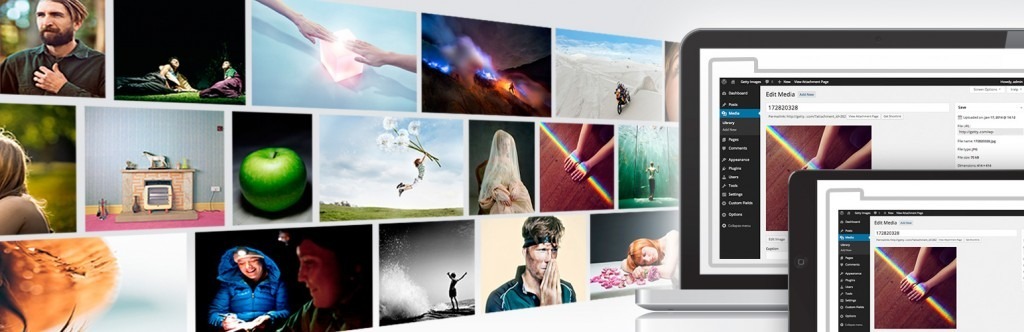
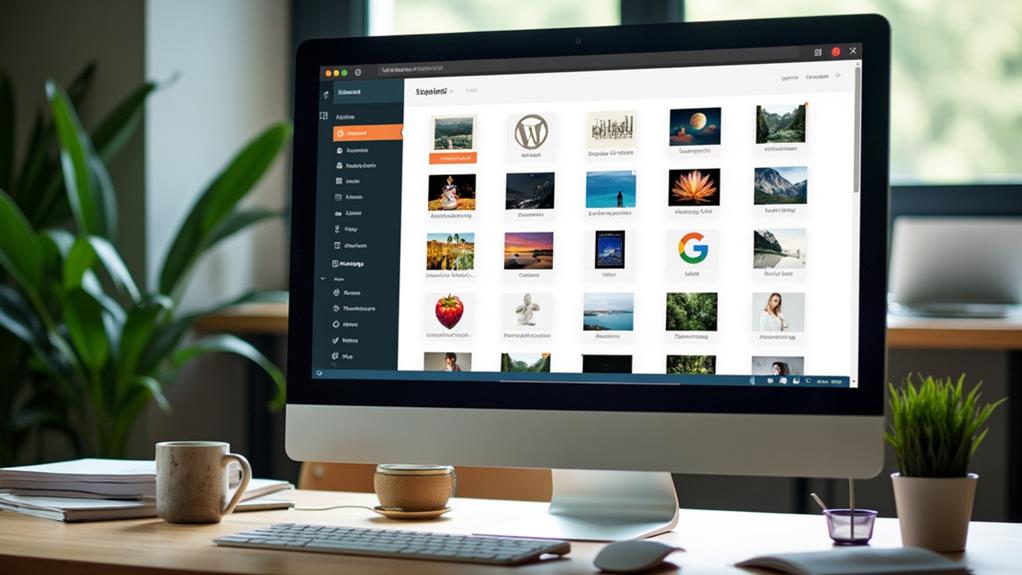
The WordPress Media Library is an essential component for efficiently managing your website's media content. Accessible from the WordPress dashboard, the Media Library acts as a centralized hub where various media types such as images, videos, audio files, and documents can be uploaded and organized. This powerful tool categorizes your media files by date and file type, ensuring your content remains easily accessible and well-structured.
You can upload media files using the "Add Media" button within post or page editing screens, or by dragging and dropping files directly into the Media Library. To enhance SEO and accessibility, you can edit media details, including titles, captions, alt text, and descriptions.
For advanced organization, plugins like Media Library Folders allow you to create folders and subfolders, simplifying content retrieval. Additionally, you can customize media upload settings to control allowed file types and maximum file sizes via Settings > Media. Optimizing images is also crucial for improving site performance. Effective media management in WordPress begins with mastering the Media Library.
Uploading and Managing Media
Uploading and managing media in WordPress is straightforward and efficient, thanks to the platform's intuitive tools. To upload images, use the "Add Media" button found in the post or page editing screens. You can easily drag and drop files or upload them from your computer.
To keep your Media Library organized, adopt consistent naming conventions and utilize folders. This way, you can quickly retrieve and manage your WordPress media whenever needed. Once you've uploaded your files, you can manage them by editing their metadata in the Edit Media screen. Updating titles, captions, alt text, and descriptions not only improves SEO but also enhances accessibility.
Regular audits of your Media Library help you optimize your media by removing unused files, ensuring the library stays efficient. However, be cautious when deleting media files. Deleting existing media can affect posts or pages where they're used, so consider backing up significant files.
| Task | Action |
|---|---|
| Upload images | Use the "Add Media" button in editing screens, drag and drop files, or upload from a computer |
| Organize media files | Maintain naming conventions and create folders |
| Optimize your media | Conduct regular audits, update metadata, and remove unused files |
Media Settings and Customization
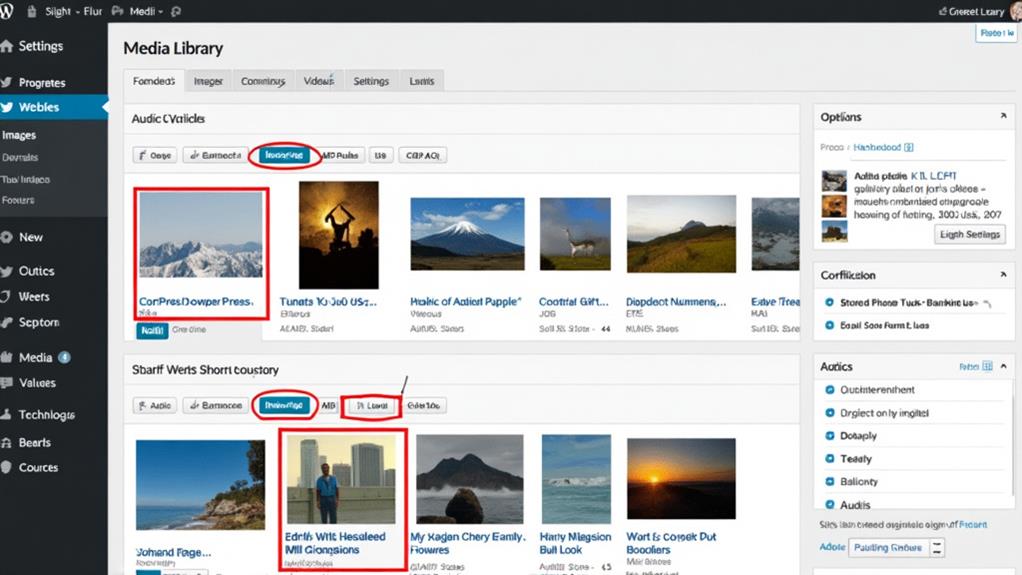
Effectively managing your media files requires both proper organization and precise customization of your media settings. Navigate to Settings > Media, where you can adjust default image sizes generated upon upload. This customization helps control file sizes, ensuring your Media Library remains optimized for performance. Additionally, you can set maximum file size limits for uploads, preventing oversized files from slowing down your site.
An essential step is specifying allowed file types. Controlling which file types can be uploaded ensures that only compatible media formats are added to your Media Library. This measure helps maintain an organized library and prevents file clutter, enhancing the overall user experience.
Optimizing media settings also involves managing how embedded media types are supported in your posts and pages. This flexibility allows you to present media content in various ways, further improving the user experience on your site. Regularly reviewing and adjusting these settings ensures that your Media Library stays organized and your site's performance remains high-quality. By implementing these practices, you'll streamline media management, contribute to faster loading times, and enhance the efficiency of your WordPress site.
Advanced Media Management Techniques
Elevate your media management techniques by adopting advanced strategies that boost efficiency and performance. One fundamental approach is integrating the Enhanced Media Library plugin, which enables you to categorize and tag media files, facilitating more efficient search and retrieval.
To further optimize your media management, consider the following advanced techniques:
- Image Optimization: Use plugins like ShortPixel to minimize file sizes without compromising quality. This enhances website performance and reduces load times.
- Cloud Storage Solutions: Implement cloud-based platforms such as Cloudinary to optimize, store, and deliver media files. This reduces server load and improves overall performance.
- Regular Audits: Conduct periodic audits of your Media Library to identify and eliminate duplicate files. This practice maintains a cleaner workspace and conserves valuable storage space.
Additionally, incorporating custom metadata fields allows you to add specific information to media files, such as copyright details or photographer credits, improving organization and searchability. The Media Library Folders plugin can further enhance media file management, contributing to your site's overall efficiency. By implementing these techniques, you will achieve a more organized and high-performing WordPress site.
Best Practices and Resources
For effective media file management in WordPress, it is crucial to adopt best practices and utilize appropriate resources. Begin by implementing consistent naming conventions for your media files. This practice not only keeps your Media Library organized but also enhances SEO by incorporating relevant keywords.
Regularly audit your Media Library to remove duplicates and unnecessary files. This helps maintain a clutter-free library and improves your site's performance. Tools like Media Library Folders and Enhanced Media Library plugins can streamline this process by allowing you to create folders and categories for easier access.
Backups are essential. Utilize plugins such as UpdraftPlus or cloud storage solutions to back up your Media Library. This ensures you won't lose valuable media files and can recover them easily if necessary. To stay informed on effective media management strategies, consult resources like the WordPress Codex and WPBeginner. These platforms offer tutorials, best practices, and troubleshooting guides that can be incredibly helpful.
Utilizing Plugins for Media
Leveraging plugins can significantly enhance your media management experience in WordPress. By integrating the right tools, you can effortlessly organize, manage, and optimize your Media Library, thereby improving both functionality and user experience.
- Media Library Folders: This plugin enables you to create, move, delete, and rename files within your Media Library. Organizing your media files into subfolders allows for better categorization and easier access, streamlining your workflow.
- Enhanced Media Library: This plugin offers advanced features such as tagging and filtering. By enabling you to tag and filter media, it enhances your ability to manage and retrieve specific files efficiently, saving you time and elevating your overall media management process.
- ShortPixel: Optimizing images is crucial for site performance. ShortPixel reduces file sizes without compromising quality, which not only speeds up your site but also optimizes your Media Library. Faster loading times lead to a better user experience.
Additionally, consider using Cloudinary for cloud-based storage and delivery solutions. It offloads files from your server, making them more accessible and improving media management. Regularly utilizing these plugins can automate organizational processes, streamline your workflow, and significantly enhance your Media Library experience.