How to Use Child Themes to Customize Your WordPress Site

Using child themes to customize your WordPress site is a powerful way to make changes without altering the original theme's code. To start, create a new folder within the 'wp-content/themes/' directory for your child theme. Next, set up the necessary files, such as style.css and functions.php. By customizing these files, you can add unique styles and functionalities while ensuring your changes remain intact during theme updates.
However, to fully leverage child themes for your site's customization, follow these crucial steps and best practices:
- Create a Properly Structured Folder: Ensure the new folder for your child theme is correctly named and placed within the 'wp-content/themes/' directory.
- Set Up style.css: Include essential information like the theme name, template, and description in the style.css file to establish a connection with the parent theme.
- Configure functions.php: Use the functions.php file to enqueue styles and scripts, ensuring they load correctly and maintain the site's performance.
- Test Thoroughly: Regularly test your child theme on various devices and browsers to ensure compatibility and functionality.
- Backup Regularly: Keep backups of your child theme and parent theme to prevent data loss and facilitate easy recovery if needed.
By adhering to these steps and best practices, you can effectively use child themes to customize your WordPress site, ensuring semantic accuracy, completeness, consistency, conciseness, relevance, interoperability, and trustworthiness.
Understanding Child Themes
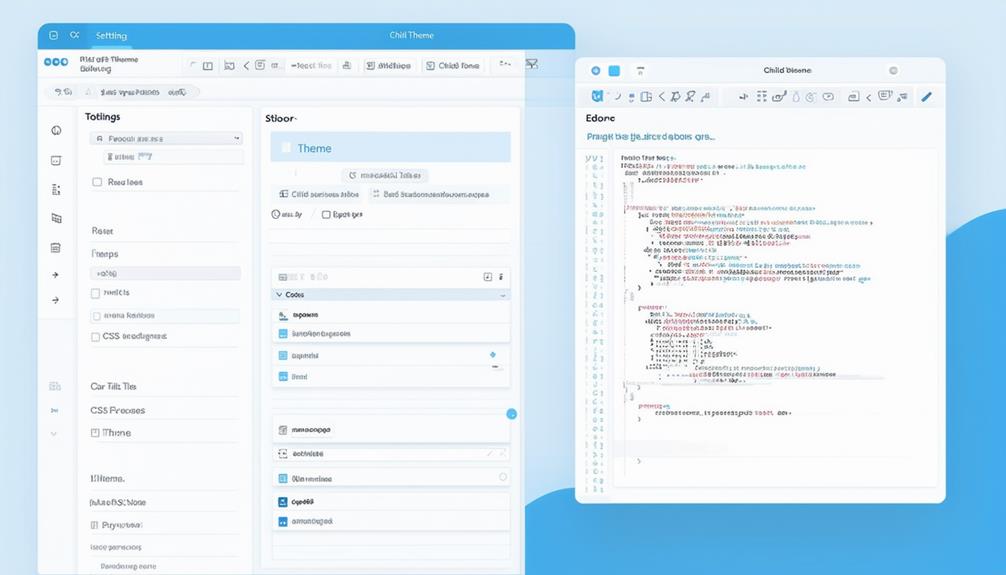
Child themes in WordPress allow you to customize your site without altering the original theme's code. To begin, it's essential to understand the relationship between parent and child themes. A child theme enhances the functionality and design of a parent theme, enabling you to make modifications while preserving the core files of the parent theme. This ensures that your changes remain intact even when the parent theme is updated.
To create a child theme, first, set up a child theme folder within your WordPress installation. Inside this folder, you need at least two main files: style.css and functions.php. The style.css file is where you add your custom CSS to modify your site's appearance, while the functions.php file is used to add or override functions from the parent theme.
Benefits of Using Child Themes
By utilizing child themes, you ensure that your customizations remain intact even after updates to the parent theme. This approach helps maintain design consistency and prevents the need for repetitive work. Here are some key benefits of using child themes:
- Customization Without Risk: Modify design elements, add custom CSS, functions, and templates without altering the parent theme. This ensures your personalized changes are preserved during updates.
- Design Consistency: Child themes allow you to retain a consistent look and feel for your site, even when the parent theme is updated. This keeps your unique design untouched and intact.
- Safe Environment for Testing: Experiment with new features and designs in a child theme without impacting your live site. This safe environment lets you test modifications and ensure they function correctly before going live.
- Organized Codebase: Placing your customizations in a child theme keeps your codebase clean and organized. This makes it easier to manage, update, and troubleshoot any issues that may arise.
When to Use Child Themes
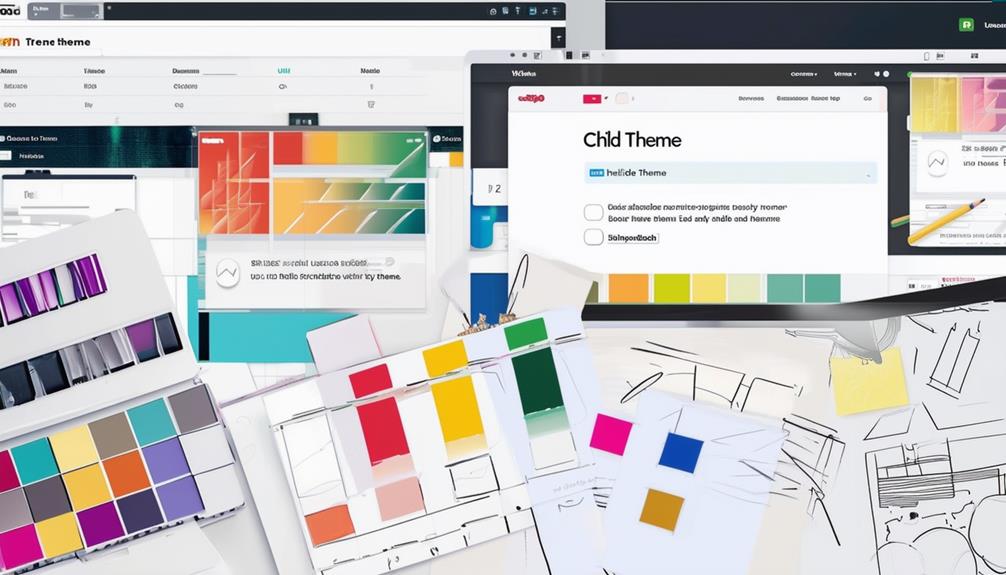
When you need to customize your WordPress site's design or functionality without losing changes during updates, using a child theme is the way to go. WordPress child themes allow you to make changes to your site by using custom files, without altering the original parent theme. This means you can update the parent theme without losing your customizations.
Creating a child theme is especially beneficial when you plan to add new templates or modify the CSS code. By using a child theme, any modifications you make—whether to the style sheet or other theme files—are kept separate from the parent theme. This separation ensures that your customizations are not lost during updates and provides a more organized way to manage your changes.
If you want to experiment with new features or design elements, a child theme is a safer choice. You can override parent theme files and add your own custom functions or styles. This makes it easier to customize a WordPress child theme without risking the stability of your site.
Setting Up a Child Theme
To set up a child theme in WordPress, follow these essential steps:
- Create a Folder: Navigate to the `wp-content/themes/` directory in your WordPress installation and create a new folder. Name it something like `yourtheme-child` for easy identification.
- Customize style.css File: Inside your new folder, create a `style.css` file. This file should reference the parent theme using the `Template` attribute. Include necessary theme information such as the theme name, description, and author details.
- functions.php File: In the same folder, create a `functions.php` file. This file allows you to add additional functionality to your child theme without modifying the parent theme's core files. Ensure you enqueue the parent theme's stylesheet to maintain design consistency.
- Activate Child Theme: Log in to your WordPress dashboard, navigate to Appearance > Themes, and activate your new child theme. This ensures your child theme inherits the design elements and functionality from the parent theme.
Creating a Child Theme Manually

To manually create a child theme, start by creating the necessary files in the `/wp-content/themes/` directory. You need to create a `style.css` file and a `functions.php` file to properly enqueue the parent theme's stylesheets. This ensures that your child theme inherits the design and functionality of the parent theme.
Setting Up Files
Creating a child theme manually involves setting up a new folder in the 'wp-content/themes/' directory and ensuring it contains the necessary files to inherit and override elements from the parent theme. Follow these steps to get started:
1. Create a New Child Theme Folder: In the 'wp-content/themes/' directory, create a new folder with a unique name to identify your child theme.
2. Create and Configure `style.css`: In your child theme folder, create a `style.css` file. Include the following necessary header information at the top of the file:
```css
/*
Theme Name: Your Child Theme Name
Theme URI: http://example.com/
Description: A description of your child theme
Author: Your Name
Author URI: http://example.com/
Template: parent-theme-folder-name
Version: 1.0.0
*/
```
Make sure the `Template` field correctly references the parent theme's directory name.
3. Create a `functions.php` File: In your child theme folder, create a `functions.php` file. This file is used to enqueue stylesheets and scripts, and to add or modify functionality:
```php
<?php
function child_theme_enqueue_styles() {
wp_enqueue_style('parent-style', get_template_directory_uri() . '/style.css');
}
add_action('wp_enqueue_scripts', 'child_theme_enqueue_styles');
?>
```
4. Activate the Child Theme: Navigate to your WordPress dashboard, go to the Appearance > Themes section, and activate your new child theme. This allows you to customize your site's design and functionality without altering the parent theme directly.
These steps ensure that your child theme is set up correctly and inherits all necessary elements from the parent theme while allowing for custom modifications.
Enqueuing Parent Stylesheets
Enqueuing the parent theme's stylesheets is essential for maintaining design consistency in your child theme while allowing for custom modifications. Use the `wp_enqueue_style` function in your child theme's `functions.php` file to achieve this. This function will load the parent theme's stylesheet, ensuring that all design elements are correctly inherited.
First, ensure you have a `functions.php` file in your child theme's directory. If it doesn't exist, create one. Then, add the following code to it:
```php
<?php
function my_theme_enqueue_styles() {
wp_enqueue_style('parent-style', get_template_directory_uri() . '/style.css');
}
add_action('wp_enqueue_scripts', 'my_theme_enqueue_styles');
?>
```
This code snippet enqueues the parent stylesheet, ensuring your child theme inherits the parent theme's design. This approach maintains design consistency and allows you to modify and extend your WordPress site without disrupting the parent theme's integrity.
Using Plugins for Child Themes
Plugins like Child Theme Configurator and Create Block Theme make setting up and customizing child themes in WordPress straightforward. These plugins allow you to modify crucial details such as the theme name, author, and version with ease. Additionally, they enable you to copy settings from the parent theme, including menus, widgets, and customizer options, ensuring a smooth transition to your new child theme.
Here's how you can use plugins to create and customize your child theme:
- Install a Child Theme Plugin: Begin by installing a plugin like Child Theme Configurator or Create Block Theme. These tools simplify the process and provide block-based editing capabilities for modern themes.
- Configure Theme Details: Use the plugin to set up your child theme's details, such as the theme name, author, and version, making your child theme identifiable and unique.
- Copy Parent Theme Settings: Ensure that settings like menus, widgets, and customizer options are replicated in the child theme. This step is crucial for maintaining the look and functionality of your site.
- Modify Style and Templates: Rename the 'Template Name' in the style.css file and upload the theme files as needed, following the plugin's instructions.
Customizing Your Child Theme
Now that you've established your child theme using a plugin, let's explore how to personalize it to meet your specific design and functionality needs.
Style Customization: Begin by editing the `style.css` file to apply CSS rules tailored to your design preferences. This file allows you to make visual adjustments without affecting the parent theme.
Override Files: To override parent theme files, duplicate the desired files, such as `page.php` or `header.php`, into your child theme's directory. This ensures that your customizations remain intact even when the parent theme updates.
Template Files: If you need unique layouts, create dedicated template files. For instance, duplicate `page.php` from the parent theme, place it in your child theme folder, and customize it as necessary.
Add Functions: Enhance your child theme by adding custom functions. Do this by including a `functions.php` file in your child theme and implementing new features or modifications.
While customizing, you may encounter issues. Address these promptly to ensure your child theme functions correctly.
Quick Overview
| Task | Action |
|---|---|
| Style Customization | Edit `style.css` |
| Override Files | Duplicate and modify files from parent theme |
| Template Files | Create dedicated templates like `page.php`, `header.php` |
| Add Functions | Include and edit `functions.php` |
Modifying Styles and Layouts
To customize your WordPress site's appearance, start by editing CSS rules in your child theme's style.css file to modify colors, fonts, and spacing. Next, update template files such as header.php and footer.php to create a distinct layout. Finally, override specific elements of the parent theme to apply these changes without altering the original design.
Styling With CSS
Customizing your WordPress site's appearance with CSS in a child theme allows you to modify colors, fonts, spacing, and other design elements without altering the parent theme. By using a child theme, you ensure that your changes are preserved during theme updates, maintaining the integrity of your customizations.
To get started:
- Identify Elements with Selectors: Use CSS selectors to target specific elements on your site. This precision enables you to make targeted adjustments to styles and layout.
- Change Colors and Fonts: Modify colors and fonts to align with your branding. Adjust text color, background color, and implement custom fonts to create a unique look.
- Adjust Spacing and Layout: Utilize CSS to tweak margins, padding, and positioning. These adjustments refine the layout and enhance the visual hierarchy of your site.
- Implement Responsive Design: Ensure your site is visually appealing on all devices by incorporating responsive design rules. Adjust CSS for varying screen sizes to maintain a consistent user experience.
Adjusting Template Files
Elevate your customizations by modifying the template files in your child theme. This approach allows you to fully tailor the appearance and functionality of your WordPress site. Begin by creating a child theme if you haven't already. Then, start by customizing the template files within it.
To change styles, edit the CSS rules in the child theme's style.css file. Here, you can enhance the default styles set by the parent theme. If you need to adjust layout elements like headers, footers, or sidebars, simply copy the corresponding template files from the parent theme into your child theme and make your changes there.
For instance, if you want a unique header design, edit the header.php file in your child theme. This method allows you to improve the parent theme's design choices without altering its original files. By adjusting these template files, you can create custom layouts that enhance both the look and user experience of your site.
Overriding Parent Themes
By using child themes, you can effortlessly override parent theme styles and layouts to give your WordPress site a distinctive appearance. Here's a concise guide on how to create and use a child theme effectively:
- Create Child Theme: Set up a new folder for your child theme and include a style.css file. Ensure the file adheres to the WordPress style guide for proper formatting.
- Enqueue Parent Stylesheet: In your child theme's functions.php file, enqueue the parent theme's stylesheet. This ensures that your child theme inherits styles from the parent theme.
- Add Custom Styles: Add your custom CSS rules to the style.css file in your child theme. These rules will override the parent theme's styles.
- Modify Templates: For layout changes, copy the template files you want to modify from the parent theme into your child theme folder. Edit these files directly in the child theme.
- Activate Child Theme: After making your changes, activate your child theme through the WordPress dashboard.
For more advanced customizations, consider using the Create Block Theme plugin or refer to the Including Assets documentation. This method ensures your child theme customizations remain intact even when the parent theme is updated, providing a personalized design without losing updates.
Overriding Parent Theme Files
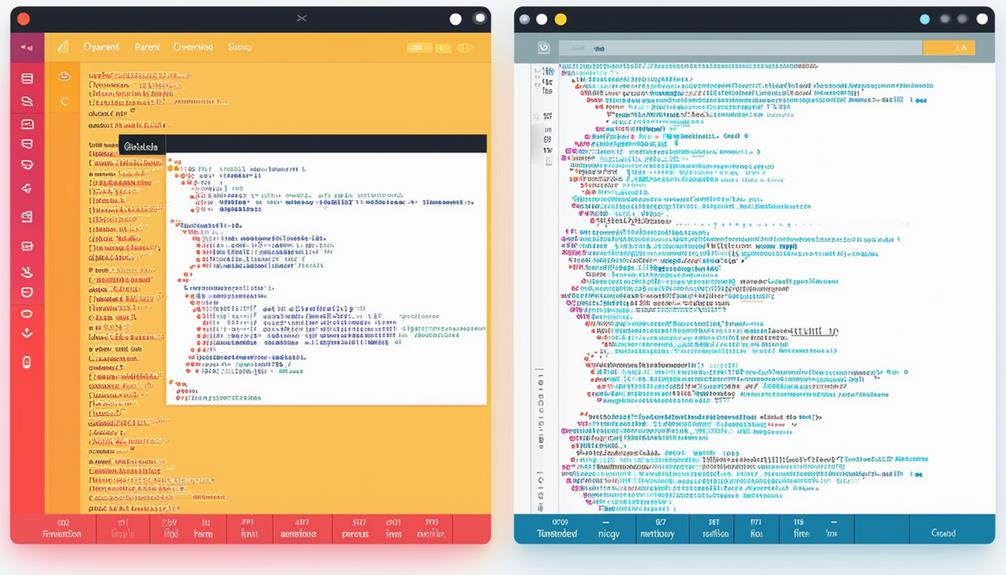
To ensure that parent theme files in your WordPress site are overridden effectively, copy the desired file to your child theme folder and make your customizations there. Child themes offer a secure way to make modifications without altering the original theme, allowing for design changes and customizations that persist even through updates.
For example, if you want to change the appearance of your website's header, copy the header.php file from the parent theme to your child theme folder. Modify the file in the child theme to reflect your desired design changes. This method ensures that your customizations remain intact, as updates to the parent theme will not affect the child theme files.
Using child themes to override parent theme files lets you tailor the website's appearance and functionality by selectively replacing or extending specific files. Whether altering footer.php for a unique footer design or updating style.css for new styles, your customizations can enhance your site without the risk of losing them during theme updates. This approach helps maintain a stable and updated website while providing the flexibility to implement your unique vision.
Testing and Activating Your Child Theme
After customizing your child theme files, the next step is to test and activate your child theme to ensure everything functions correctly. Here's how to do it:
- Activate the Child Theme: In your WordPress dashboard, navigate to the 'Themes' section and activate your child theme. This action will apply all your customizations and changes to your site.
- Testing on a Staging Site: Before deploying the child theme to your live website, test it on a staging site. This precaution allows you to identify and resolve any functionality issues or design inconsistencies without impacting your live site.
- Theme Management: Once testing is complete and you are satisfied with the results, consider deleting any unused child themes. This step helps maintain a streamlined and organized theme management system.
- Live Site Testing: After thorough testing on the staging site, activate the child theme on your live site. Conduct a final check for any issues to ensure design consistency and functionality.
These steps will help ensure a smooth transition and maintain the integrity of your website.
Conclusion
Using child themes to customize your WordPress site is a wise approach. This method ensures your changes are preserved during updates while keeping the original theme intact. By setting up a child theme, you can safely experiment with new styles, layouts, and functionalities. Navigate to your WordPress dashboard, activate your child theme, and start transforming your site without worrying about losing your customizations. This approach allows you to make your website truly unique and dynamic.