How to Use WordPress for Event Management
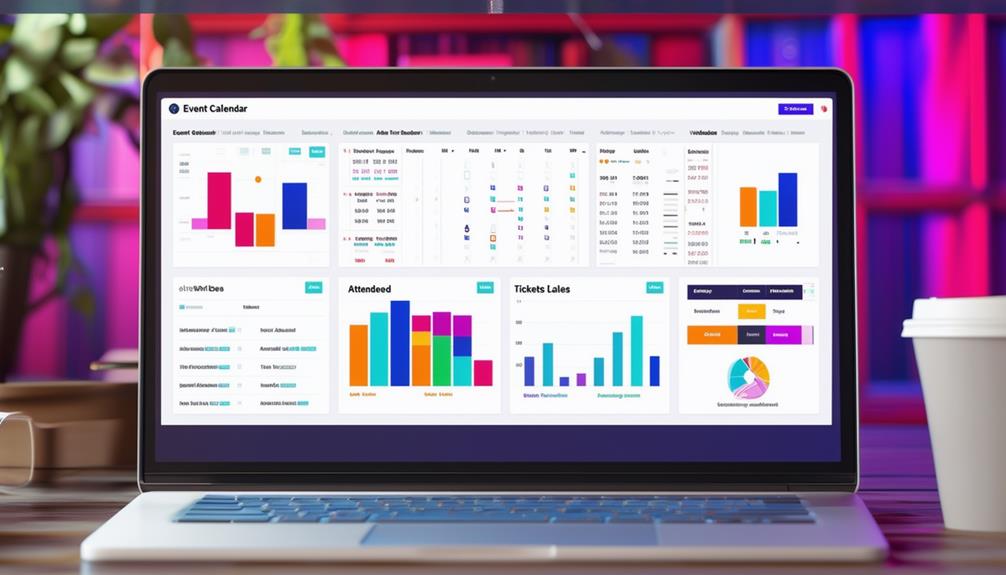
Using WordPress for seamless event management starts with selecting the right plugin. A dependable option like Events Manager can streamline tasks such as registration, ticketing, and payment processing. After installing and activating the plugin, configure essential settings like date format and currency. Customizing event pages with unique banners and colors, and utilizing tools like Elementor for tailored designs can significantly enhance your event's presentation. Efficiently managing attendees and ticket sales is the next crucial step.
Choosing an Event Management Plugin

When selecting an event management plugin, you should consider features like registration management, ticketing, payment processing, and calendaring. For WordPress users, the Event Manager plugin is a top choice. This versatile tool offers both a free version and a Pro version, catering to various event planning needs.
The free version of the Event Manager plugin provides robust features, including event registration and custom event pages with venue details and Google Maps integration. This helps attendees easily locate your event. Additionally, it allows seamless collection of attendee data, aiding in tracking and follow-up.
For more advanced needs, the Pro version includes premium support and a range of add-ons, enhancing your event management capabilities. Features like automated payment processing, advanced booking management, customizable event submission forms, and search and filter options make it easier for users to find relevant events. Whether organizing a small meetup or a large conference, this plugin offers comprehensive tools to manage events efficiently.
Setting Up Your Plugin
After selecting an ideal event management plugin, it's time to set it up for efficient event organization. Begin by installing and activating the Events Manager plugin from your WordPress admin dashboard. This plugin includes robust features designed to simplify event management. Once activated, navigate to the Events Settings in your dashboard to configure your options.
Here are the key steps to get started:
- Customize Event Tags and Categories: Organize your events effectively by setting up specific tags and categories, streamlining the event creation process.
- Add Event Locations: Input your event venues for quick selection during event setup, making the process more efficient.
- Configure General Settings: Adjust the settings to match your event management requirements, such as date format, time zone, and currency.
- Enable Booking Options: If your events require booking, enable and configure these options to handle ticket sales and reservations.
- Explore Additional Plugins: While Events Manager is powerful, exploring other event plugins might offer functionalities that cater to your unique needs.
These steps ensure a comprehensive and efficient setup, allowing you to manage your events effectively.
Customizing Event Pages
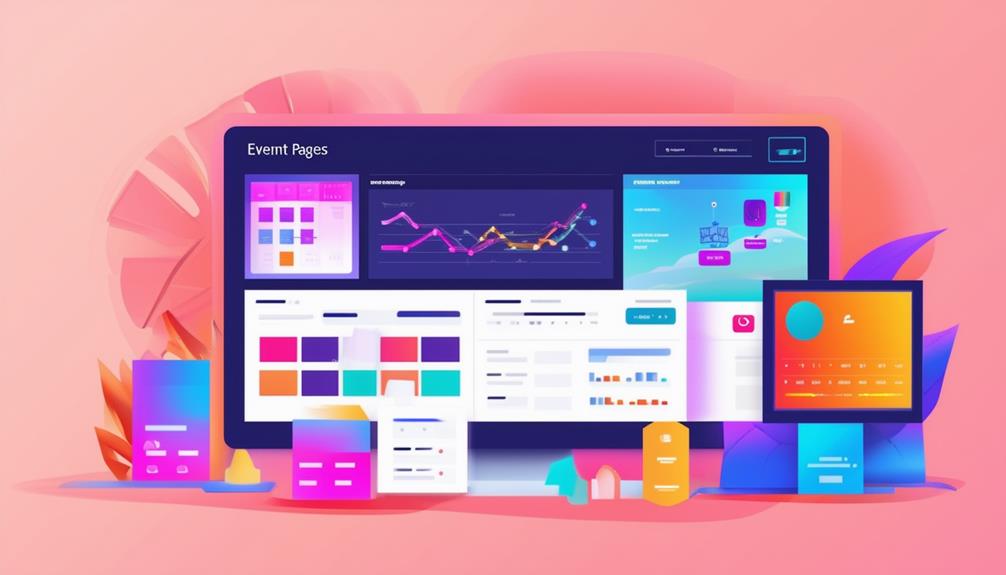
Customizing your event pages is essential for creating a visually appealing and cohesive branding experience that attracts attendees. Start by incorporating custom banner images that reflect the event's theme. These images can set the tone and immediately grab attention, making your events look more professional and inviting. Align the colors with your brand; consistency in colors across your event pages and other materials enhances visual appeal and reinforces your brand identity.
Utilize WordPress's customization options to craft engaging designs that stand out. Add various visual elements, like icons and graphics, to make your event pages more dynamic and eye-catching. This not only improves aesthetic appeal but also enhances the user experience. Attendees are more likely to engage with a page that's both informative and visually pleasing.
Focus on the layout and structure of the event information. A well-organized page with clear sections for event details, schedules, and logistics makes it easier for users to navigate. Customizing your event pages ensures they reflect the event's tone, purpose, and branding, creating a seamless and personalized experience for your audience.
Managing Attendees and Tickets
Once you've perfected the look of your event pages, it's time to efficiently manage attendees and tickets using WordPress plugins. The WP Event Manager plugin offers a comprehensive attendee management system that lets you handle everything smoothly. You can manage ticket sales and registrations through the plugin's customizable ticketing system, ensuring a seamless process for your attendees.
To keep your event running smoothly, consider these features:
- Customizable Ticketing: Adapt ticket options to meet the specific needs of your event.
- Seamless Registration: Simplify the registration process, making it easy for attendees to sign up.
- Personalized Communication: Send tailored email notifications and updates to keep attendees informed.
- Attendee Management: Utilize advanced tools to track and manage attendee information efficiently.
- Engagement Tools: Enhance participation with customized messaging and communication features.
The plugin's seamless ticketing process enhances the attendee registration experience, making it effortless for participants to obtain their tickets. Additionally, the robust communication features allow you to send personalized email notifications and updates, ensuring everyone stays informed. By engaging attendees with tailored messaging, you can significantly boost event participation and satisfaction.
Enhancing Event Experience

Enhance your event experience by customizing pages with unique banner images and colors that reflect your event's theme. Utilize Elementor to further tailor designs, providing a visually appealing and cohesive look across all event pages. This attention to detail will ensure your event stands out and becomes memorable for attendees.
Organize your events efficiently with WP Events. Create an Events Calendar to list all upcoming events clearly and use the Event Category feature to categorize them, making it easier for attendees to find events of interest. Customize each Single Event page using Page Settings to meet your specific requirements.
For a seamless ticketing process, integrate WooCommerce to sell tickets directly from your site. This integration simplifies ticket selling and payment processing, making it convenient for your attendees. Implement QR codes for quick and efficient event registration and attendee tracking.
Enhance event planning by syncing with Google Calendar, allowing attendees to easily add events to their personal schedules. By leveraging these features, you can create a front-end event experience that is engaging, efficient, and ultimately enhances your event's success.
Conclusion
By following these steps, you can effectively manage your events using WordPress. Start by choosing a robust event management plugin, set it up, and customize your event pages to align with your brand. Seamlessly manage your attendees and ticket sales, and enhance the experience with integrations like an Events Calendar and WooCommerce. These tools will ensure your events run smoothly and successfully, leaving your attendees impressed and engaged.