How to Use WordPress to Showcase Customer Testimonials

Using WordPress to showcase customer testimonials can significantly enhance your website's credibility and attract potential clients. Begin by installing the WP Testimonials Plugin from your WordPress dashboard. This plugin allows you to seamlessly add and display customer feedback. Customizing testimonial widgets ensures they align with your brand's aesthetics, making them visually appealing. Utilizing shortcodes enables you to easily insert testimonials across various pages. But how do you ensure these testimonials are effective and maintain a positive impact on your online reputation? Let's explore the best practices for managing and displaying authentic customer feedback.
Benefits of Showcasing Testimonials
Displaying customer testimonials on your WordPress site can significantly enhance your brand's credibility and reputation. Testimonials serve as a strong form of social proof, validating the quality of your products or services. Potential customers often rely on positive reviews to make informed purchasing decisions, and featuring these reviews on your website can greatly improve your online reputation.
Using a WordPress plugin to showcase testimonials is a strategic approach. It enables you to manage and present customer feedback attractively and efficiently. This not only enriches the user experience but also boosts SEO, making your site more visible to potential customers. A well-designed testimonials section can increase conversions by up to 25%, as visitors are more likely to trust and engage with a brand that demonstrates customer satisfaction.
Incorporating testimonials on your WordPress site strengthens your connection with your audience. It adds credibility to your claims and shows that real people have had positive experiences with your brand. Consequently, your website becomes a more engaging and trustworthy platform, ultimately driving more traffic and sales.
Installing WP Testimonials Plugin
How can you quickly set up the WP Testimonials Plugin to start showcasing customer testimonials on your WordPress site in just a few minutes? First, navigate to your WordPress dashboard. From there, go to the 'Plugins' section and click 'Add New'. In the search bar, type 'WP Testimonials Plugin' and press enter. Once you locate it, click 'Install Now' and then 'Activate'. This will integrate the testimonial plugin into your site, ready for you to start displaying testimonials.
After installing and activating the plugin, you will see a new menu item labeled "Testimonials" in your WordPress dashboard. Click on it, then select "Add New" to begin adding customer feedback. Enter the customer's name, their testimonial, and any other relevant details. You can also include images to make your testimonials more engaging.
To showcase testimonials on your website, use the widget plugin that comes with WP Testimonials. This feature allows you to choose from 35 layouts and 16 styles to fit your design. Adding positive testimonials helps build credibility and can be done without any coding skills. Enjoy the simplicity of highlighting customer feedback with Testimonials in WordPress!
Customizing Testimonial Widgets
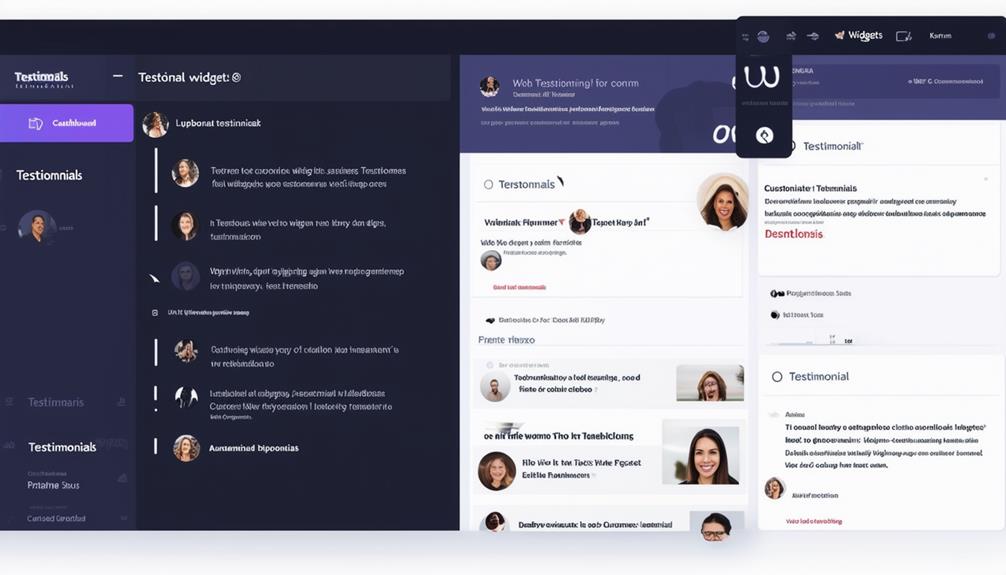
Looking to make your customer testimonials more impactful? Customizing testimonial widgets is an excellent way to enhance the presentation of customer feedback on your WordPress site. With 35 different widget layouts available, you can display testimonials in various styles that align with your website's design. Additionally, 16 unique design styles provide further customization options, ensuring that your testimonials perfectly match your site's aesthetic.
The best part is that no coding skills are required to personalize and showcase testimonials effectively. The user-friendly design customization options allow you to adjust every aspect of the testimonial presentation effortlessly. This enables you to focus on making your testimonials visually appealing without dealing with complex technical details.
Moreover, these testimonial widgets are fully responsive, ensuring they look great on all devices, whether viewed on a desktop, tablet, or smartphone. This responsive design guarantees that your testimonials retain their impact, regardless of how your audience accesses your site. Utilize these customizable widgets to display testimonials in a way that captivates your audience and strengthens your brand's credibility.
Filtering and Displaying Testimonials
After customizing your testimonial widgets, it's essential to filter and display testimonials effectively to maximize their impact on your WordPress site. Using a plugin like Reviews Feed Pro, you can seamlessly filter testimonials from various platforms such as Google, Facebook, Tripadvisor, and Trustpilot. This ensures that only the most relevant and positive reviews are showcased, thereby enhancing your business's online reputation.
To display testimonials effectively, follow these steps:
- Filter Testimonials: Use the plugin's features to select reviews based on criteria such as ratings or dates. This highlights the most impactful testimonials.
- Customize Design: Utilize visual customizer tools to align the testimonial layout with your website's branding, creating a cohesive look and feel.
- Ensure Responsiveness: Ensure that testimonials look great on all devices. Select plugins with responsive design features that automatically adjust the layout for different screen sizes.
- Moderate Testimonials: Regularly manage and moderate testimonials to keep your content fresh and relevant, which helps maintain a positive online reputation.
Using Shortcodes to Insert Testimonials
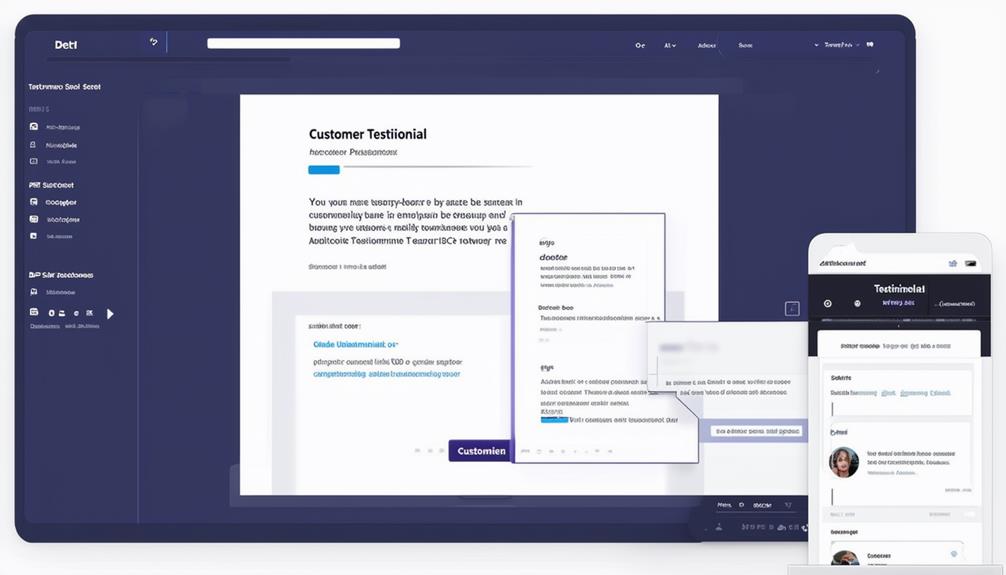
Shortcodes offer a powerful and straightforward way to insert testimonials into your WordPress site, enhancing user experience without requiring complex coding skills. By using shortcodes, you can easily add dynamic content like customer testimonials to any page or post, effectively showcasing positive feedback.
To get started, locate the shortcode provided by your testimonial plugin. Simply insert this shortcode into the desired location on your page or post. This method allows you to integrate testimonials seamlessly without delving into coding intricacies.
Shortcodes are highly flexible and enable you to customize the appearance and layout of your testimonials. By modifying the shortcode parameters, you can adjust the number of testimonials displayed, their order, and specific styling options. This customization ensures that the testimonials align with your site's overall design and branding.
Displaying customer testimonials through shortcodes not only simplifies the process but also enhances your site's credibility. Potential customers are more likely to trust your brand when they see authentic testimonials from satisfied clients. Utilize WordPress shortcodes to present your testimonials dynamically and attractively.
Conclusion
Showcasing customer testimonials on your WordPress site is a powerful way to build trust and attract new customers. By installing the WP Testimonials Plugin, customizing your widgets, and strategically using shortcodes, you can effectively display authentic feedback. Regularly managing and updating testimonials ensures your content remains fresh and your online reputation stays positive. Start today, and observe how genuine customer testimonials can enhance your credibility and boost conversions.