Improving Wordpress Site Speed With Caching Plugins
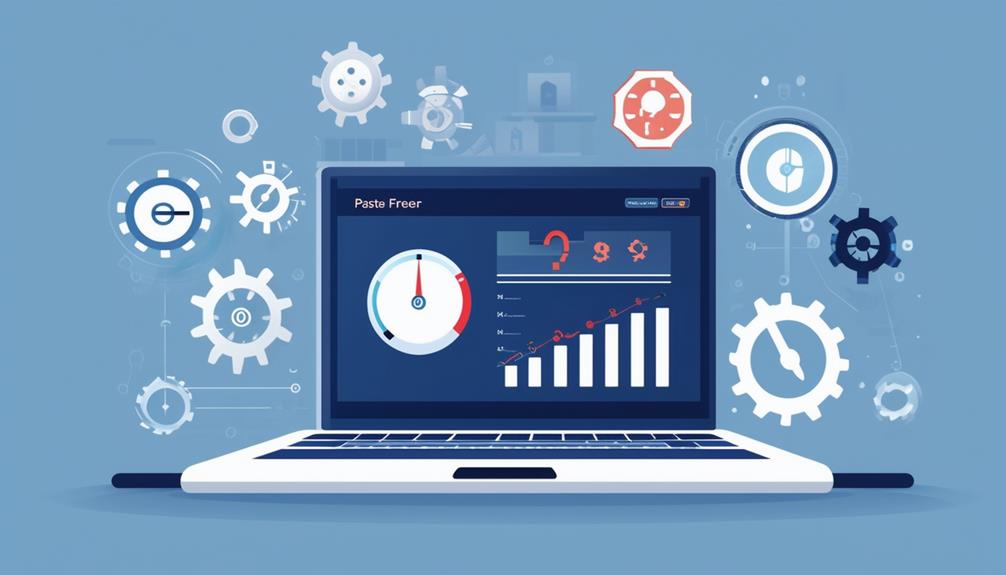
A slow WordPress site can frustrate users and negatively impact your SEO rankings. Caching plugins like WP Rocket, Autoptimize, and LiteSpeed Cache can significantly enhance your site speed. By storing static versions of your pages, these tools reduce server load and improve load times, thereby enhancing user experience and efficiently managing higher traffic volumes. Ready to learn how to install and configure these plugins for optimal performance? Let's explore the specifics and transform your website's speed and reliability.
Understanding Caching Plugins
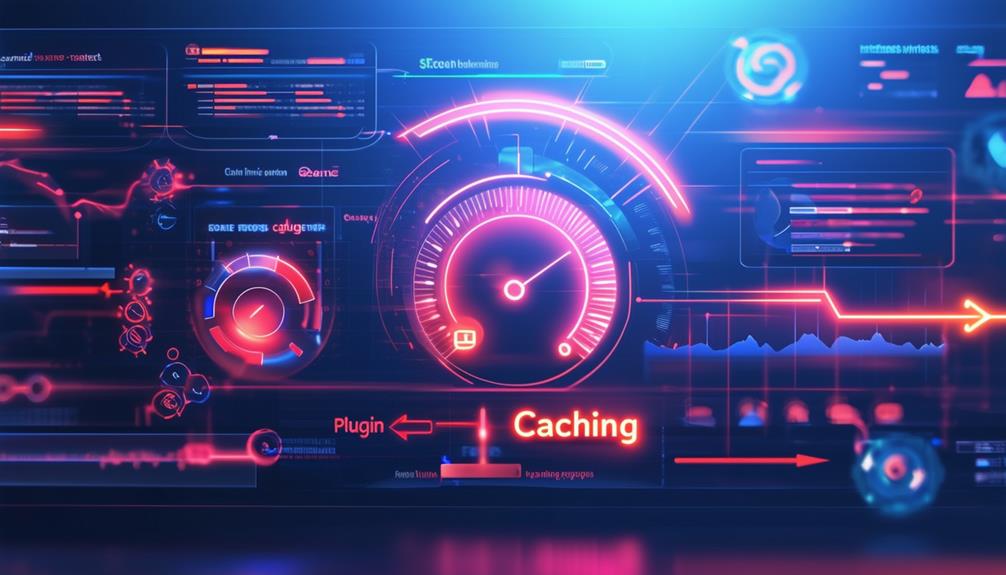
Caching plugins are essential tools for improving WordPress site performance by storing copies of your pages, resulting in faster loading times for visitors. Utilizing these plugins can significantly enhance site speed, leading to a better user experience, reduced bounce rates, and improved Core Web Vitals metrics.
One primary feature of caching plugins is page caching, which stores static versions of your site pages. This means that when a user visits your site, they are served the cached page instead of waiting for it to be generated dynamically. Browser caching further optimizes performance by storing static files, such as images and scripts, in the user's browser, ensuring even quicker load times for subsequent visits.
Furthermore, GZIP compression reduces the size of your website files, making them faster to load. CDN (Content Delivery Network) integration is another powerful feature, distributing your site's content across multiple servers worldwide to ensure faster access for global users. Popular caching plugins like WP Rocket and W3 Total Cache incorporate these optimization techniques, helping you maintain a fast, user-friendly website.
Benefits of Using Caching Plugins
Implementing caching plugins on your WordPress site provides several significant advantages, including improved load times and reduced server strain. These enhancements not only boost the user experience but also contribute positively to your site's SEO performance. By utilizing a caching plugin, you can efficiently handle increased traffic levels without sacrificing site performance.
Faster Load Times
Implementing caching plugins can significantly speed up your WordPress site, ensuring visitors experience faster load times. These plugins store a copy of your website on the server, reducing the time it takes for pages to load when users visit. This improves not only your site's speed and performance but also enhances user experience and boosts your SEO ranking.
Using the best cache plugin optimizes several aspects of your site:
- Page Load Time: Caching pages reduces the time needed to load them, resulting in quicker page loads for your visitors.
- Website Performance: Features like browser caching and GZIP compression improve overall website performance by minimizing file sizes and speeding up access.
- Speed Optimization: Techniques such as object caching ensure a seamless browsing experience and allow your site to handle more traffic efficiently.
With a WordPress cache, you'll see significant improvements in loading speed, making your site more efficient and user-friendly. By focusing on speed and performance, you enhance your site's ability to attract and retain visitors, ultimately boosting your online presence. Therefore, leveraging caching plugins is crucial for creating a faster and more reliable website.
Reduced Server Load
Utilizing caching plugins significantly reduces server load by storing static copies of your website, ensuring quicker content delivery to visitors. By caching static content, you minimize repeated server requests, thereby decreasing the overall server processing required. This optimization leads to improved performance, making your website more responsive and faster for users.
Here's how caching plugins benefit your site:
| Benefit | Description |
|---|---|
| Reduce Server Load | Static copies reduce the need for repeated server requests. |
| Improve Performance | Faster content delivery enhances website speed and responsiveness. |
| Handle Higher Traffic | Efficiently manage more simultaneous users, improving site stability. |
A reduced server load means your site can handle higher traffic volumes without issues, ensuring a smooth user experience even during peak times. By minimizing server processing, caching plugins optimize resource utilization, making your server work smarter, not harder.
Additionally, with less strain on your server, you enhance your site's stability, avoiding potential crashes or slowdowns during high traffic periods. Implementing caching plugins is a straightforward yet powerful way to enhance your website's speed, reliability, and overall performance.
Top Caching Plugins for WordPress
When it comes to speeding up your WordPress site, several top caching plugins can make a significant difference. A robust caching plugin not only enhances site performance but also reduces server load. Let's explore some of the best options available.
- WP Rocket: This is a leading caching solution known for its advanced caching options and user-friendly interface. It's ideal for those seeking an easy way to boost site performance without diving into technical details.
- Autoptimize: While not a traditional caching plugin, Autoptimize excels at optimizing CSS, JavaScript, and HTML files. It works well alongside other caching plugins, ensuring your site runs smoothly.
- LiteSpeed Cache: Offering comprehensive WordPress speed optimization and significant performance improvements, LiteSpeed Cache shines when paired with QUIC.cloud integration. It's a great choice for those seeking enhanced performance.
Other notable mentions include WP-Optimize, which specializes in database cleanup and image optimization, and WP Super Cache, ideal for those wanting advanced cache options and CDN support. These plugins can significantly improve your website's speed, making your visitors' experience seamless and enjoyable.
How to Install a Caching Plugin
To install a caching plugin, start by selecting one that suits your needs, such as WP Rocket or W3 Total Cache. Log in to your WordPress dashboard, go to the Plugins section, and search for your chosen plugin. Click 'Install Now,' then activate and configure it to improve your site's speed.
Choosing the Right Plugin
Choosing the right caching plugin, such as WP Rocket, can significantly enhance your site's speed and performance. When selecting a WordPress caching plugin, consider its features, ease of use, and its potential to boost your site's performance. WP Rocket is particularly notable because it integrates page caching, browser caching, and GZIP compression, which are essential for reducing loading times and server strain.
To install a caching plugin like WP Rocket, follow these steps:
- Download and Install: Go to the WordPress repository, search for the plugin, click 'Install Now,' and then 'Activate.'
- Advanced Features: Ensure the plugin supports page caching, browser caching, and GZIP compression to optimize site speed.
- Performance Monitoring: Use tools like Google PageSpeed Insights and monitor Core Web Vitals to assess the plugin's impact on your site's performance.
Plugin Configuration Steps
Installing a caching plugin on your WordPress site is crucial for enhancing performance and can be done directly from your dashboard. Follow these steps:
- Navigate to Plugins > Add New.
- In the search bar, type the name of the caching plugin you wish to install (e.g., WP Rocket or W3 Total Cache).
- Once you find your preferred plugin, click Install Now.
- After the installation is complete, click Activate to enable the plugin.
Next, configure the caching plugin settings to optimize your website's performance. Each plugin has unique settings, but generally, you should enable options like:
- Page Caching
- Browser Caching
- Minification of CSS and JavaScript files
These settings will significantly boost your site speed.
Regularly monitor and adjust your caching plugin settings to ensure optimal performance. This includes checking the plugin's dashboard for updates or recommended adjustments. Consistent monitoring and tweaking are essential for maintaining improved site speed and performance.
Configuring Your Caching Plugin

Configuring your caching plugin correctly is crucial for optimizing your WordPress site's speed and performance. Follow these steps to ensure your caching plugin is set up effectively:
- Enable Browser Caching: Store static content like images, CSS, and JavaScript files locally on visitors' devices to reduce load times for returning visitors.
- Utilize Cache Preloading: Pre-generate cached versions of your site's pages to ensure quicker loading for new visitors.
- Adjust Cache Expiration Settings: Balance content freshness with caching efficiency to enhance site performance.
- Optimize Minification Settings: Reduce the file sizes of CSS and JavaScript by removing unnecessary characters and spaces, resulting in faster load times.
- Integrate a Content Delivery Network (CDN): Serve cached content from servers closer to your visitors, reducing latency and increasing site speed.
Measuring Site Speed Improvements
To gauge the effectiveness of your caching strategies, employ tools like GTMetrix and Google PageSpeed Insights. These performance testing tools analyze key metrics such as page load times and server response times, offering a comprehensive performance evaluation.
Start by documenting your site's loading times before implementing any caching plugins. This initial measurement will serve as a baseline for comparison. After installing and configuring your caching plugin, re-run the tests to assess the changes in site speed.
Pay special attention to Core Web Vitals, which are essential for evaluating site speed improvements and user experience. Metrics such as Largest Contentful Paint (LCP), First Input Delay (FID), and Cumulative Layout Shift (CLS) are critical indicators of your site's performance.
Observe the improvements in page load times and server response times post-implementation of caching plugins. These enhancements will directly contribute to better site optimization and an improved user experience. By routinely monitoring these performance metrics, you can ensure your site maintains optimal speed and efficiency, providing a seamless experience for your visitors. Regular performance evaluation is vital for sustained site optimization.
Conclusion
Enhance your WordPress site's speed and performance by utilizing caching plugins such as WP Rocket, Autoptimize, or LiteSpeed Cache. These plugins effectively reduce server load, improve load times, and handle increased traffic seamlessly. Proper configuration and regular monitoring of performance metrics will lead to significant improvements in user experience, retention rates, and SEO rankings. Optimize your site today for a faster, smoother browsing experience!