Is Wordpress Multisite Slower?
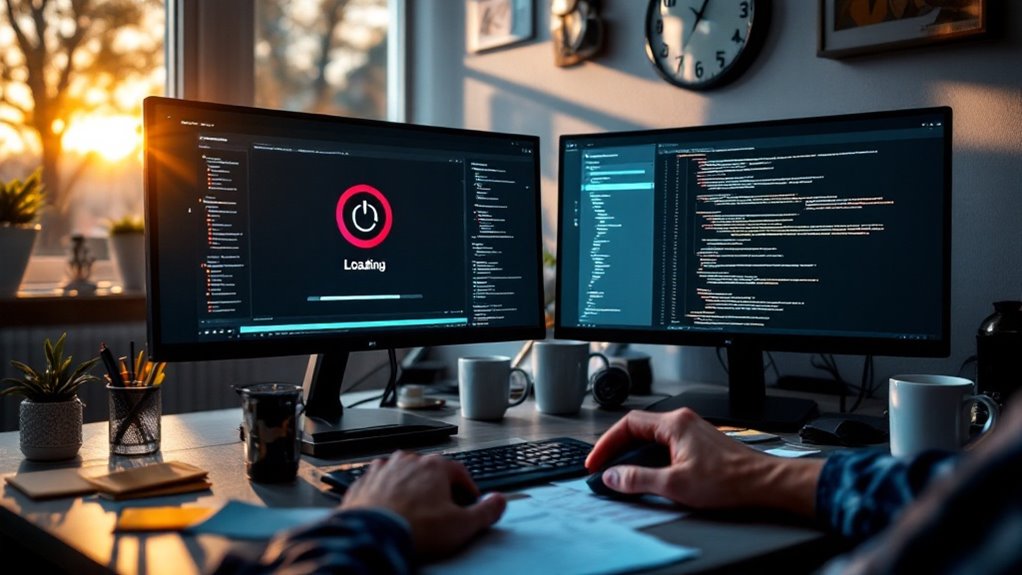
Yes, WordPress Multisite can be slower due to increased database size and plugin load. As you expand with new sites, complexity rises, which can affect load times. Poorly configured plugins might drag performance further, both backend and frontend. Optimizing your server settings, like upgrading your PHP version and increasing RAM, can improve speed considerably. Deploy caching techniques and stay on top of CMS updates to counter slowdowns. You should monitor and regularly clean your databases to keep your sites running smoothly.
Curious about more ways to optimize performance and tackle these challenges effectively? Let's investigate some strategies next.
Understanding WordPress Multisite
Understanding WordPress Multisite is fundamental if you're thinking about managing multiple websites efficiently. With Multisite, you can share a single codebase across numerous sites, making updates and management straightforward. This setup allows you to maintain consistency and simplifies tasks such as updating plugins or themes, as changes apply across all subsites simultaneously. Each subsite in your Multisite network has its own database tables, aiding in organization but also posing potential performance challenges as your network grows.
When you use Multisite, performance hinges on how you manage plugins and themes. Since they can greatly impact the entire system, it's crucial to be selective and ascertain they're optimized. The cumulative load from these elements can lead to slowdowns, especially in the admin interface, which may affect your efficiency while managing your sites.
To improve performance, consider caching solutions like Cloudflare and WP Rocket. However, keep in mind that your server's configuration and resource allocation play a fundamental role. Regular site backups are essential for data protection, especially when managing multiple free sites within a WordPress Multisite setup. Regular maintenance is key—optimize database requests and keep an eye on server performance. This proactive approach helps maintain a smooth-running WordPress Multisite environment, guaranteeing you manage your websites effectively without unnecessary slowdowns.
Performance Challenges
Managing a WordPress Multisite network does offer efficiency, but it also introduces significant performance challenges. You might find that admin pages load slowly, sometimes taking over 20 seconds, especially when numerous plugins are active. Even deactivated plugins can contribute to this lag, suggesting a deeper issue with performance management. The complexity of a multisite setup can exacerbate resource contention, resulting in excessive processing demands—just like when a debug log ballooned to 2.2GB in ten days.
Here's what you should keep an eye on:
- Excessive Database Queries: Large-scale querying can bog down your system, increasing load times considerably.
- Inefficient Plugin Code: Poorly written plugins can add considerable delays, further affecting speed.
- PHP Version: Upgrading to PHP 7.x from PHP 5.6.x can provide significant speed improvements, so keeping your PHP updated is essential.
- Memory Allocation: Verify the minimum recommended 2048M memory is allocated, or you might face slowdowns during peak traffic.
- Plugin Management: Evaluate and streamline active plugins to avoid unnecessary performance bottlenecks.
Incorporating a caching plugin such as W3 Total Cache can significantly reduce load times by storing static page versions, which is crucial for maintaining optimal performance in a multisite network. While Multisite offers numerous advantages, careful management of performance and plugins is vital to keep your network running smoothly.
Server Resource Impacts

When managing a WordPress Multisite network, you'll often encounter server resource impacts that can slow down performance. As you add more WordPress sites to your network, each one increases the database size and complexity. This added strain can lead to increased load times and server stress, particularly if you're on a shared server environment. It's crucial to be mindful of how these factors contribute to slower performance.
Another key factor is the plugins you use across your network. Excessive or poorly configured plugins can degrade performance considerably. They can slow down both admin and front-end loading times, making your sites less responsive. To avoid these pitfalls, evaluate your plugins carefully and remove any that aren't necessary.
Additionally, memory limits can be a bottleneck for multisite installations. Allocating at least 2048M of memory is recommended to efficiently handle the demands of multiple WordPress sites. Choosing a hosting environment with SSD drives and adequate RAM, such as 8GB or more, can also help maintain peak performance, especially in high-traffic situations. Regular CMS updates are essential to ensure compatibility and reduce downtime, as they prevent compatibility issues with the latest web standards and technologies. By addressing these server resource impacts, you can improve your multisite network's speed and efficiency.
Caching and Optimization
In the domain of WordPress Multisite, effective caching and optimization are essential to maintaining fast and responsive websites. By implementing the right strategies, you can greatly improve the performance of your multisite setup. Caching solutions like Cloudflare, Varnish, WP Rocket, and Redis play a crucial role in reducing server load and optimizing resource delivery. These tools guarantee your sites load quickly, even during high traffic periods.
Enabling Gzip compression globally is another optimization technique that minimizes file sizes for faster data transfer between the server and the browser. To prevent server overload, contemplate using Nginx caching with tailored directives. This method efficiently manages requests and serves cached content directly to users, improving loading speeds.
Here are some key techniques to reflect upon:
- Cloudflare, Varnish, WP Rocket, Redis: Use these for effective caching solutions.
- Gzip Compression: Enable globally to minimize file sizes.
- Nginx Caching: Implement tailored directives to handle requests efficiently.
- Object Caching and Indexing: Streamline database interactions during high traffic.
- Theme and Plugin Optimization: Regularly check for excessive database queries.
To accurately assess the improvement in site speed after implementing these techniques, utilize tools like Google PageSpeed Insights to measure key performance metrics and ensure sustained optimization.
Plugin Compatibility Issues
A common challenge in WordPress multisite installations is plugin compatibility, which can greatly impact performance. When you're managing a network of sites, plugin compatibility issues often arise because not all plugins are built for shared environments. This can lead to performance slowdowns, especially if large or poorly coded plugins are in play. Some plugins, even when deactivated, can add several seconds to load times, creating unnecessary delays.
You'll find that many plugins aren't compatible with multisite configurations, which means that any updates could cause performance regressions across your entire network. Imagine updating a plugin and suddenly finding that all your sites are running slower. It's a real headache. The cumulative effect of multiple plugins can also overwhelm your database queries, leading to sluggish admin and front-end experiences compared to single installations. WordPress has over 60,700 plugins available, but it's crucial to choose those that work well with multisite environments to avoid potential slowdowns.
To mitigate these issues, regularly monitor your multisite setup. Clean up the wp-options table to remove inefficiencies and keep an eye on how plugins interact with your network. It's vital to ascertain that each plugin is optimized for a multisite environment. This proactive approach can help prevent performance slowdowns and maintain a smooth-running network.
User Interaction Effects
User interactions, particularly those involving profile updates and job listings, can greatly impact your WordPress multisite's performance. When users engage with your site, each action, like updating profiles or submitting job applications, triggers database queries. If these queries aren't efficiently managed, they can lead to noticeable latency. During peak usage times, increased load times are common as user interactions multiply. Here's how these interactions can affect performance:
- Search Functionality: Without proper optimization, handling multiple search queries simultaneously can slow down your site.
- Concurrent Users: High numbers of users interacting at once can strain server resources, causing slower response times.
- Database Queries: Each user action generates database queries, which, if not optimized, can lead to performance bottlenecks.
- Server Resources: Insufficient server resources can't handle high traffic effectively, resulting in slower site performance.
- Optimization Techniques: Using indexing and external search services can alleviate the performance impact.
- A centralized management system enhances efficiency by overseeing multiple sites from one dashboard, which can help streamline user interactions and reduce performance issues.
Database Management Strategies

To tackle the challenges posed by user interactions, focusing on robust database management strategies is vital. In a WordPress multisite setup, each site within the network has its own database tables. By optimizing these tables independently, you can considerably improve performance. Start by regularly cleaning up the wp-options table, as excessive entries can slow down database queries across all your sites. This simple step can make a big difference in how quickly your sites load.
Indexing facets and using object caching are also essential. These strategies improve database interactions, reducing load times, especially in high-traffic networks. When many users are interacting with different subsites simultaneously, these optimizations help maintain smooth performance. Moreover, consider implementing external search services like Algolia. Offloading intensive database queries to such services can greatly improve search efficiency, enhancing site performance as a whole.
It's also vital to keep an eye on RAM usage and optimize your database queries. Doing so helps prevent performance bottlenecks during peak traffic periods. Ignoring regular updates can leave your WordPress multisite network vulnerable to security threats, so make sure to keep everything up to date. By staying proactive with these database management techniques, you can guarantee your WordPress multisite network runs efficiently, keeping user experience positive and seamless.
Monitoring and Diagnostics
When managing a WordPress multisite network, effective monitoring and diagnostics are crucial for maintaining ideal performance. You need to identify potential performance issues early on to guarantee everything runs smoothly. Monitoring tools like Query Monitor and Chrome Dev Tools are invaluable, as they can pinpoint where your site's load time is being spent, particularly highlighting the initial GET request as a possible bottleneck.
Profiling plugins such as P3 and Debug Bar provide insights into which individual plugins might be slowing things down. Implementing caching mechanisms can enhance site performance by reducing server load and improving loading speeds. To keep your finger on the pulse of your network's performance, consider the following actions:
- Monitor RAM Usage: Keep an eye on RAM usage per user, especially during peak times, to diagnose potential performance issues.
- Analyze Debug Logs: Regularly check debug logs, as large files might indicate excessive API calls or other underlying issues.
- Check Plugin Run Times: Use profiling plugins to determine which plugins are causing delays.
- Identify Benign Notices: Examine debug logs for benign entries that don't affect functionality but could be optimized.
- Optimize GET Requests: Focus on minimizing load times by addressing the initial GET request bottleneck.
Troubleshooting Techniques

Troubleshooting techniques are your best ally when optimizing a WordPress multisite network. Start by utilizing performance monitoring tools like Query Monitor and Chrome Dev Tools. These can help you identify slow-loading scripts and pinpoint where most load time is spent. You'll often find that up to 95% of delays come from initial GET requests.
Next, tackle the wp-options table. Regularly clean it up, as excessive entries can slow down your entire network. This simple maintenance task can greatly enhance performance.
Implement debugging strategies by logging plugin loading times. Adjust loading priorities to isolate and identify any problematic plugins. This way, you can quickly zero in on those causing slowdowns.
Consider upgrading to PHP 7.x if you haven't already. This newer version has shown considerable speed improvements over PHP 5.6.x, which is nearing its end of life.
Finally, monitor and analyze debug logs for excessive API chatter or benign notices. While they might not affect functionality, they could indicate underlying performance issues. By addressing these, you can target and resolve specific problems, ensuring a smoother and faster multisite experience. Regularly conducting performance audits helps identify new issues and maintain optimal performance across your network.