The Power of WordPress Multisite: Managing Multiple Sites
Managing multiple websites can be significantly more efficient with WordPress Multisite. This feature allows you to handle everything from one centralized dashboard, streamlining updates, controlling user permissions, and ensuring consistent branding across all your sites. This setup not only saves time but also simplifies administrative tasks. By installing themes and plugins network-wide, you can maintain a cohesive look and feel across all sites. Interested in setting up and fully leveraging WordPress Multisite? Let's explore the steps and features that can revolutionize your web management experience.
Benefits of WordPress Multisite
WordPress Multisite offers a centralized management system that significantly enhances efficiency by allowing you to oversee all your websites from a single dashboard. This feature is transformative for those managing multiple sites, as it eliminates the need to log in to each site individually. With just a few clicks, you can streamline your workflow and apply global updates across all your sites.
The platform also simplifies updates, enabling you to update plugins, themes, and content simultaneously across all your sites. This not only saves time but also ensures uniformity and consistency throughout your network. Furthermore, centralized management bolsters security by allowing you to monitor multiple websites from one dashboard, making it easier to detect and address potential security threats promptly.
Another key benefit of WordPress Multisite is its efficient enablement. Managing multiple sites without switching between different dashboards facilitates smoother implementation of changes and keeps your workflow uninterrupted. Whether you're adding new features or making adjustments, you can do so effortlessly across all your sites. This level of control and flexibility is invaluable for effective multi-site management.
Setting Up WordPress Multisite
To set up WordPress Multisite, begin by enabling the Multisite Network feature in your current WordPress installation. Then, configure your domain structure to decide whether your new sites will use subdomains (e.g., site1.example.com) or subdirectories (e.g., example.com/site1). Finally, add new sites to the network and customize them with themes and plugins to meet your specific requirements.
Enabling Multisite Network
Setting up a Multisite Network in WordPress streamlines the management of multiple websites from a single, centralized dashboard. By enabling this feature, you can manage themes, plugins, and user permissions across all your sites efficiently. Here's how to get started:
- Enable Multisite: Open your WordPress configuration file (wp-config.php) and add the following line above the 'That's all, stop editing!' comment:
```php
define('WP_ALLOW_MULTISITE', true);
```
- Access Network Setup: After saving the changes, log into your WordPress admin area. Under the Tools menu, you'll find the new “Network Setup” option. Click it to proceed.
- Configure Network Settings: Choose between subdomains (e.g., site1.yourdomain.com) or subdirectories (e.g., yourdomain.com/site1) for new sites. This selection will determine how your network's URLs are structured.
- Install the Network: Follow the on-screen instructions to make additional modifications to your wp-config.php and .htaccess files. After completing these steps, you'll be able to manage your network from the Network Admin dashboard.
Configuring Domain Structure
When configuring the domain structure in a WordPress Multisite network, you will need to decide between using subdomains or subdirectories for organizing your sites. Each option has its advantages and considerations:
Subdomains
- Example: site1.example.com
- Advantages:
- Better site isolation.
- Enhanced branding, making each site appear more independent.
- Considerations:
- Requires setting up wildcard subdomains on your server.
- Can be beneficial if you anticipate different user bases or branding for each site.
Subdirectories
- Example: example.com/site1
- Advantages:
- Simpler to manage.
- Potentially more SEO-friendly due to shared resources and easier indexing by search engines.
- Considerations:
- Can provide a more cohesive user experience.
- Streamlined SEO efforts.
Setting Up Your Domain Structure
Server Configurations:
- Subdomains: Configure wildcard subdomains on your server.
- Subdirectories: Ensure your server supports subdirectory structures.
Domain Mapping:
- Use domain mapping plugins like 'WordPress MU Domain Mapping' to associate custom domains with specific subsites, enhancing flexibility and branding.
Considerations for Decision-Making
- SEO Impact: Subdirectories may be more SEO-friendly, but subdomains offer better isolation.
- User Experience: Subdirectories can provide a more cohesive experience.
- Site Organization: Choose based on whether you need distinct branding (subdomains) or unified resources (subdirectories).
Adding New Sites
Adding new sites to your WordPress Multisite network is a straightforward process via the Network Admin dashboard. To get started, navigate to the 'Sites' menu and click on 'Add New.' Here, you'll fill in essential details such as the site address, title, and admin email. By assigning a unique domain name, either as a subdomain or subdirectory, you ensure the new site is distinguishable within your network.
To streamline the process, follow these steps:
- Access the Sites Menu: In the Network Admin dashboard, click on 'Sites' and then 'Add New' to initiate the setup.
- Enter Site Details: Provide the site address, title, and admin email to create the new site.
- Adjust Settings: Customize settings for the individual site, including user roles, permissions, and theme installations.
- Configure User Access: Set up user permissions to control who can access and manage the new site.
Each site can be customized with its own themes and plugins, giving it a unique identity and functionality. You can manage and monitor all added sites from the centralized WordPress Multisite dashboard, ensuring streamlined operations. Setting up new sites in your network not only expands your reach but also simplifies managing multiple sites under one umbrella.
Managing Multiple Websites
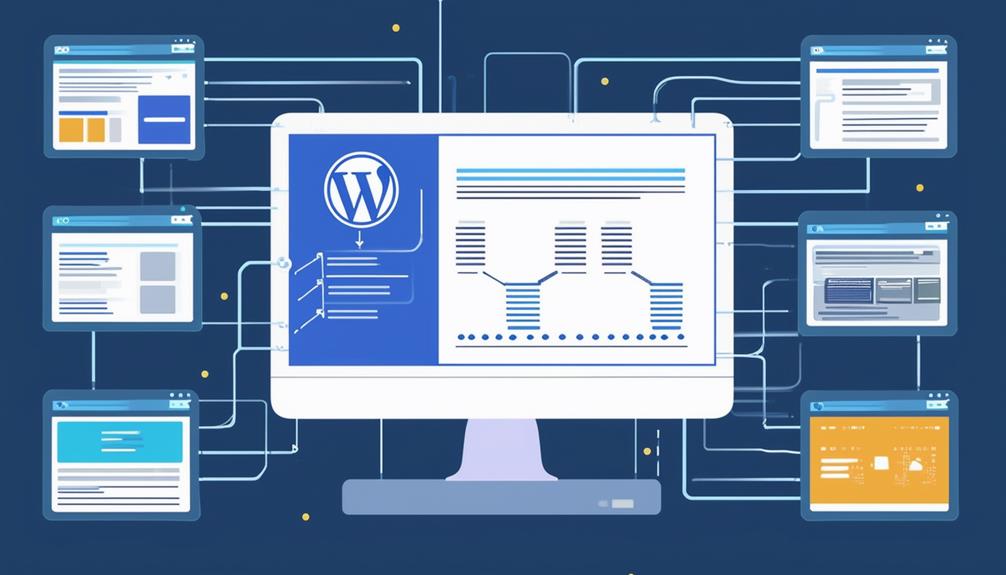
Managing multiple websites using WordPress Multisite allows you to oversee various sites from a single dashboard, streamlining your administrative tasks. This feature offers significant advantages over managing individual sites. You can easily create and manage multiple websites, install themes and plugins across your network, and maintain control over user permissions. This centralized control enhances efficiency, enabling you to assign different roles and ensure security.
When installing new plugins, Multisite simplifies the process by allowing you to install them once and activate them across any or all sites in your network. This saves time and minimizes potential conflicts. However, be aware of potential drawbacks, such as increased complexity and the need for more robust hosting solutions to handle the additional load.
Multisite offers tremendous flexibility. You can customize themes, plugins, and branding for each site independently. Monitoring site performance becomes straightforward as you can track loading speed, uptime, and engagement from a single location. This centralized control makes managing multiple websites easier, ensuring a consistent and high-quality experience across your network.
Content Management and Sharing
Effortlessly manage and share content across your WordPress Multisite network to ensure consistency and efficiency. WordPress Multisite simplifies the management of multiple websites by streamlining content sharing and centralizing media management. With this system, you can upload media files once and utilize them across all your sites, saving storage space and making updates easier. This centralized strategy ensures that your content remains consistent and aligned with your brand's identity.
Here's how you can enhance your content management and sharing:
- Central Media Management: Upload media files once and access them across all sites. This approach saves storage space and allows for seamless updates.
- Content Sharing Plugins: Use plugins to publish content simultaneously to multiple sites, ensuring your message reaches every part of your network efficiently.
- Custom Themes: Develop custom themes for each site to enhance user experience while maintaining brand consistency and design integrity.
- Branding Plugins: Implement branding plugins to ensure uniform design elements and consistent branding across all sites within your network.
Customization and Branding
When managing multiple sites in WordPress Multisite, unified theme management simplifies maintaining a consistent look across your network. Simultaneously, you can customize individual sites to ensure each one stands out and aligns with its specific audience. This balance between uniformity and uniqueness helps maintain consistent branding while allowing for targeted adjustments.
Unified Theme Management
Centralize your theme management in WordPress Multisite to ensure consistent branding and design across all network sites. Centralized theme management enables you to align all design elements with your brand identity seamlessly. You can customize themes to meet specific needs while maintaining a unified look and feel.
Here's how centralized theme management enhances your branding efforts:
- Consistent Branding: Ensure all sites in your network reflect your brand identity through uniform design elements like colors, fonts, and layouts.
- Unified Design Elements: Apply shared themes across multiple sites to maintain a cohesive appearance, reducing the risk of off-brand design.
- Customization Flexibility: Customize themes for individual sites within the network to address unique needs while adhering to overarching brand guidelines.
- Efficient Management: Use plugins and tools to streamline the process, including custom CSS injectors, logo display settings, and typography customization to enhance branding.
With WordPress Multisite, you can efficiently manage themes, plugins, and design elements, ensuring a cohesive and branded experience across your entire network of websites.
Individual Site Customization
Customizing individual sites within a WordPress Multisite network allows you to tailor each site's design and branding to meet its specific needs and target audience. By customizing themes, you can ensure that the look and feel align perfectly with each site's unique brand identity. Plugins for branding and design offer advanced customization options, helping maintain a cohesive aesthetic while allowing each site to stand out.
Customizing navigation and menus is crucial for creating unique menu structures that highlight key pages and guide visitors effectively. Custom CSS injectors can be used to add specific styles, enhancing visual appeal. Logo display options and typography customizers are essential for reinforcing brand identity. These tools ensure that logos and fonts are consistent with the brand's overall image.
Tailoring the menu layout and content for each site can significantly improve user experience and increase brand visibility. Adjusting these elements to suit individual site objectives ensures that visitors have a seamless and engaging experience. With the right customization, each site in your network can offer a unique yet cohesive experience, enhancing brand impact and user satisfaction.
Consistent Branding Across Sites
Maintaining consistent branding across all sites in your WordPress Multisite network is essential for a unified and professional image. Using custom themes ensures each site has a unique look and feel that aligns with your brand's identity. Additionally, branding and design plugins help maintain brand consistency across the network.
To enhance user interaction, focus on creating custom navigation menus. These menus highlight key pages and ensure a seamless user experience. Tailored menu structures and custom links for each site make navigation intuitive and engaging.
Achieve consistency in branding and design through typography customization, logo customization, and CSS customization. These elements collectively provide a cohesive visual identity. Here's how:
- Custom Themes: Align the look and feel of each site with your brand.
- Branding Plugins: Use plugins to maintain design elements and brand identity across all sites.
- Custom Navigation Menus: Design unique menu structures to improve user interaction.
- Typography and CSS Customization: Customize fonts, logos, and CSS to ensure brand consistency.
Advanced Features and Integrations
WordPress Multisite's advanced features, such as domain mapping and SSL integration, enable secure and efficient management of multiple websites with unique domains. Domain mapping allows each site to have its own domain name, while SSL certificates ensure encrypted data transmission across your network. Adding new sites through the Multisite dashboard is streamlined, and Google Analytics integration offers easy configuration and tracking.
To enhance functionality and maintain design consistency, you can deploy network-wide themes and plugins. This ensures a uniform appearance across all sites, simplifying management. For common issues like login problems or unconfirmed users, a detailed FAQ section is invaluable.
Here's a quick overview of these advanced features:
| Feature | Benefits | Tools/Resources |
|---|---|---|
| Domain Mapping | Unique domains for each site | WordPress Multisite |
| SSL Certificates | Secure data transmission | SSL integration |
| Multisite Dashboard | Easy site management | Google Analytics |
| Network-wide Themes | Consistent design across sites | Network-wide themes |
| Network-wide Plugins | Enhanced functionality | Network-wide plugins |
| Troubleshooting | Smooth operations | FAQs, support forums |
Leveraging these advanced features and integrations will streamline your Multisite network, making it easier to manage multiple sites efficiently and securely.
User Roles and Permissions
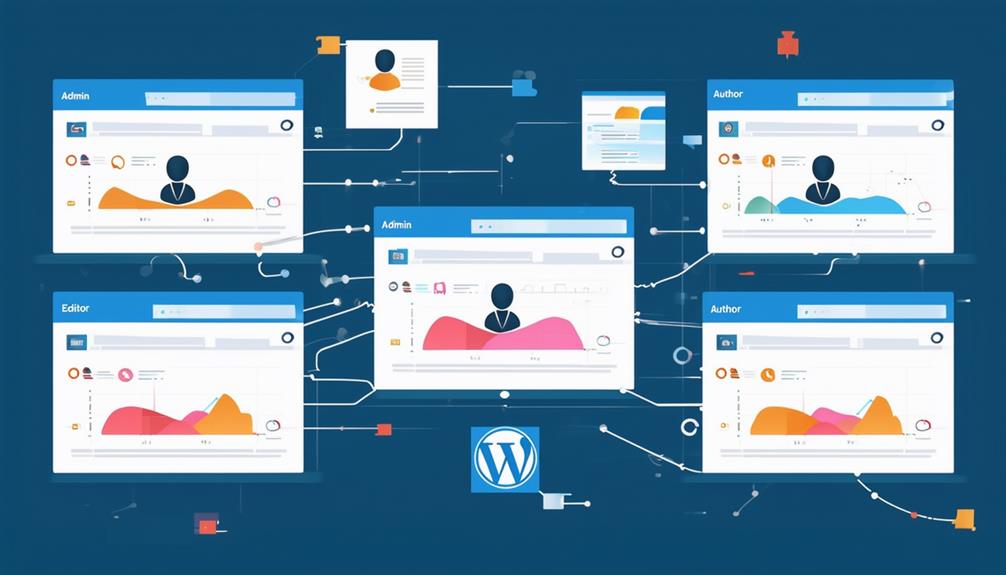
Managing user roles and permissions in a WordPress Multisite network is crucial for both security and efficient administration. User roles define the actions individuals can perform and the areas they can access within the network. These roles range from Super Admin, who has full control over the network, to Subscriber, who can only manage their own profile.
Here's an overview of the primary user roles and their permissions:
- Super Admin: Has complete control over the entire network, including all sites and users.
- Administrator: Manages settings and content for individual sites but lacks network-wide control.
- Editor: Can publish and manage posts and pages but cannot access site-wide settings.
- Author: Can write and publish their own posts but cannot edit or manage others' content.
- Contributor: Can write posts but cannot publish them, allowing for editorial oversight.
- Subscriber: Has the least permissions, focused solely on managing their personal profile.
Each role comes with distinct permissions and access levels, enabling fine-tuned security and functionality across the network. This structure ensures efficient user management and enhances the overall security of the multisite environment.
Troubleshooting Common Issues
When addressing common issues in a WordPress Multisite network, you often need to resolve plugin conflicts, theme compatibility problems, and database errors. For troubleshooting login problems, check user permissions, cookie settings, and site URL configurations. Ensuring these elements are correctly set up can resolve many access issues.
Unconfirmed users can also be problematic. Validate email activation links and review user registration settings to ensure smooth onboarding. Plugin and theme issues are frequent as well. Confirm that plugins are compatible with WordPress Multisite and verify network activation to avoid conflicts. Similarly, check theme compatibility to prevent display and functionality issues across your sites.
For database errors, regular backups and effective database management are essential. Monitoring database integrity helps prevent data loss and maintain site performance.
Here's a quick reference table to assist with troubleshooting:
| Issue | Troubleshooting Steps | Keywords |
|---|---|---|
| Login Problems | Check user permissions, cookie settings, site URL | user permissions, cookie settings, site URL configurations |
| Unconfirmed Users | Verify email activation links, check registration settings | email activation links, user registration settings |
| Plugin and Theme Issues | Ensure compatibility, verify network activation | plugin conflicts, theme compatibility |
With these strategies, you can effectively manage and resolve common WordPress Multisite issues.
Conclusion
WordPress Multisite offers a revolutionary way to manage multiple websites, simplifying and streamlining your workflow. By centralizing tasks, you can maintain consistent branding, efficiently handle updates, and control user roles and permissions with ease. Leverage its advanced features and integrations to maximize its potential. With WordPress Multisite, you have the tools to enhance web management and ensure seamless operation across all your sites. Ready to elevate your web management game?