Can Wordpress Multisite Have Different Themes?
Yes, with WordPress Multisite, you can assign different themes to each subsite, giving you flexibility and personalization across your network. As the Network Admin, you control theme installations, allowing specific themes to be activated for individual subsites or network-wide. Custom themes improve your brand, enhance user engagement, and cater to diverse audience needs. While managing themes, you can face challenges like compatibility issues, but strategic management and using child themes can help maintain design consistency.
Understanding these dynamics promises even more insights into optimizing your WordPress Multisite experience.
Understanding WordPress Multisite
When you plunge into WordPress Multisite, you'll uncover a powerful feature that lets multiple sites run under one installation. This setup is perfect if you need to manage several sites efficiently while maintaining unique looks and feels. With WordPress Multisite, each subsite can sport different themes, giving you the flexibility to tailor designs to specific audiences. This capability improves the user experience, as visitors to each subsite enjoy a design crafted specifically for them.
As a network admin, you hold the reins for theme installation and activation. You can decide which themes are available for each subsite or across the entire network. This centralized control guarantees that while you manage the entire network, site admins can personalize their individual sites. Each subsite has its own set of database tables, meaning changes in theme settings impact only that particular subsite, keeping others unaffected.
Site admins can investigate the "Appearance" section within their own site admin dashboard to select from themes you've made available. This decentralized access empowers site admins to refine their sites' aesthetics, guaranteeing a seamless and engaging experience for their users while you maintain overarching control. Having a responsive design ensures that each subsite adjusts to various screen sizes, enhancing the overall user experience across different devices.
Theme Management in Multisite
Managing themes in a WordPress Multisite network requires a strategic approach to confirm each subsite meets its design requirements while maintaining consistency across the network. In a WordPress multisite setup, different themes can be activated for each subsite, allowing you to tailor unique designs for varied audiences. This flexibility guarantees that each subsite feels distinct while still being part of a cohesive network.
The Network Admin plays an essential role in theme management, controlling the installation and network-wide availability of themes. Once a theme is installed, it can either be activated across the entire network or limited to specific subsites. This means you can mix different styles within the multisite framework, offering each subsite a personalized look. Some popular themes for multisite setups include Divi, Astra, and Avada, which are known for their versatility and extensive customization options.
However, careful management is vital when making modifications to theme files, as changes will impact all subsites using that theme. To activate a theme for a specific subsite, you or your individual site admin needs to navigate to the "Appearance" section within the subsite's admin dashboard. Here, you can select the desired theme, confirming it aligns with the subsite's unique design needs while maintaining network integrity.
How to Activate Themes
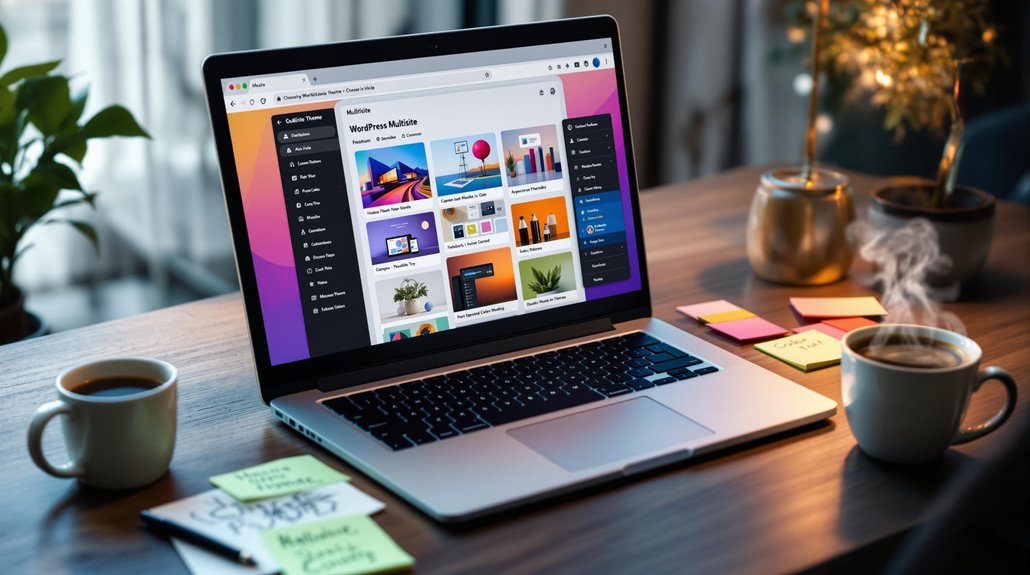
Activating themes in a WordPress Multisite network often begins with accessing the Network Admin area, where you can manage installations for the entire network. Initially, navigate to the Network Admin dashboard, which is your central hub for all multisite theme management tasks. Here, you can install the themes you want available across your network. Once installed, the next step is to immerse yourself in each individual site's admin dashboard.
For each individual site, head to the "Appearance" section. This is where the magic happens—select and activate the specific theme you want for that site. This process allows each subsite within your multisite network to have its own unique look and feel, enabling significant customization. Remember, each theme's activation is independent, meaning you can tailor the appearance of each site to suit its purpose or audience.
However, it's crucial to recognize that any modifications to theme files will impact all sites using that particular theme, so careful management and planning are necessary. With these steps, you can efficiently activate and manage themes across your WordPress Multisite, ensuring each site reflects its unique identity while maintaining cohesive network-wide installations. Additionally, using domain mapping allows each site to have unique domain names, which can enhance branding opportunities across the network.
Benefits of Different Themes
Embracing the diversity of WordPress multisite themes allows each subsite to immerse with its own unique design and functionality. This flexibility means you can tailor each site to its specific audience, guaranteeing a unique look and feel that resonates with users. As a network admin, you can manage theme installations from a central location, offering subsites access to a shared pool of themes. This setup not only streamlines management but also empowers individual sites to maintain a distinct design that sets them apart. When selecting themes, ensure they are SEO-friendly to improve search engine rankings. Here's how different themes can benefit your WordPress multisite:
- Customization and Visual Identity: Each subsite can use custom themes that align with its content, enhancing visual identity while catering to specific functionalities and user needs.
- Improved Navigation and User Engagement: With themes tailored to individual site purposes, users enjoy better navigation, leading to increased engagement and satisfaction.
- Enhanced User Experience: By aligning the theme's design with the site's purpose, you guarantee a seamless user experience that keeps visitors returning.
Utilizing different themes within a multisite environment promotes clear differentiation and meets the diverse needs of business and private client sites, creating an engaging and effective web presence.
Potential Challenges and Conflicts

When you plunge into the world of WordPress multisite themes, you might encounter potential challenges and conflicts that could disrupt your site's functionality. In a multisite setup, using different themes for each subsite can seem appealing, but it introduces potential conflicts. Any theme modifications affect all sites using that theme, risking site-wide issues.
Compatibility issues often arise, especially with plugins expecting traditional theme structures. These issues become more pronounced with block themes and Full Site Editing features, which might lead to errors or even crashes. Managing a multisite network can help streamline operations by allowing you to oversee themes and plugins from one dashboard, simplifying updates for all sites. Creating custom themes or child themes for specific subsites offers a way to avoid conflicts from shared themes. However, this typically involves advanced configurations, which can be intimidating if you're not familiar with theme development.
Theme modifications in a multisite environment are stored in the database, complicating version control and backup processes. This makes it challenging to track changes and guarantee consistency across your network. Moreover, activating certain themes within a multisite environment can yield mixed results, requiring thorough testing. This step is essential to prevent site-wide issues and guarantee compatibility with your existing plugins and configurations. Maneuvering these challenges demands careful planning and execution.
Real-World Examples and Insights
Innovation thrives in the domain of WordPress multisite themes, as real-world implementations reveal the versatility and customization possibilities available to site administrators. Many users have successfully employed WordPress Multisite to activate different themes for each subsite, enabling tailored designs that cater to distinct audiences. This approach not only improves user experience but also guarantees that each subsite can sport a unique theme without disrupting the overall network.
As a network admin, you can centrally install and manage themes, providing individual site admins the freedom to select and activate themes that suit their subsite's purpose. This flexibility allows for extensive customization across your multisite configuration. To paint a clearer picture:
- Educational Networks: Universities often use WordPress Multisite to allow each department to choose a theme reflecting their academic focus.
- Corporate Networks: Companies with multiple brands can have subsites with themes that align with each brand's identity.
- Community Blogs: Different themes can be activated for blogs to match the interests and demographics of diverse audience segments.
It's important to ensure browser compatibility when selecting themes to avoid conflicts and guarantee seamless performance. Testing theme compatibility is essential to avoiding conflicts and guaranteeing seamless performance. With these insights, you're better equipped to utilize the full potential of WordPress Multisite.
Best Practices for Theme Usage
To effectively manage themes in a WordPress multisite setup, focus on a few key practices that guarantee smooth operation and customization. Initially, utilize the Network Admin interface to handle theme activation across your subsites. This centralized control allows you to install and enable different themes, providing each subsite with a unique look tailored to its specific audience or purpose.
Next, regarding customizations, consider using child themes. These allow you to make modifications for specific subsites without altering the main theme, thereby preventing unintended changes across the network. Child themes are particularly useful for maintaining unique subsite designs while guaranteeing stability and consistency. Compatibility issues can be a significant concern, especially while dealing with plugins. Not all themes and plugins work seamlessly in a WordPress multisite environment.
It's essential to test themes and plugins together to confirm they don't disrupt functionality across subsites. Additionally, WordPress Customizer allows adjustments to site identity, colors, typography, and header/footer settings, enabling cohesive design across different subsites. Lastly, always adhere to best practices by monitoring your themes' performance and regularly updating them.
This proactive approach helps avoid potential security vulnerabilities and guarantees a smooth user experience network-wide. By following these guidelines, you'll keep your multisite environment running efficiently and effectively.